How to Use BUTT to Broadcast Live: Step-by-Step Guide for Your Online Radio
Your station is up, AutoDJ is playing your music around the clock and listeners are starting to tune in. At some point, though, you’ll want more than a playlist: you’ll want to open the mic, greet your audience by name, take a request or host a show of your own. That’s the moment you need an encoder, a small program that takes the sound from your computer and sends it live to your station.
There are many encoders out there, but BUTT is one of the easiest places to start. It’s free, it runs on Windows, macOS and Linux, and it does one job well: it streams whatever comes into your computer’s audio input. Once you understand how it works, going live takes a few clicks.
In this guide, we explain how to use BUTT step by step. We start with what BUTT is and what you need before you begin. Then we walk through the full setup with Zeno, from installing the program to hearing yourself on a phone. After that, we cover how to put music and your voice on air together, a few extra features worth using and how to fix the most common problems.
What Is BUTT and When Should You Use It?
BUTT stands for “Broadcast Using This Tool.” It’s a free, open-source encoder: it captures the audio from an input on your computer, such as a microphone, an audio interface or a mixer, compresses it and sends it to your streaming server. Unlike a music player or DJ software, BUTT doesn’t play files or mix tracks. It only takes the sound you give it and puts it on air.
That simplicity is exactly why it works so well for live talk. A church streaming its service, a school club hosting a weekly show or a community station interviewing a guest all need the same thing: a reliable way to send a live signal. BUTT does that with very few settings, and it uses little of your computer’s power.
It also helps to understand how BUTT fits with the rest of your station. AutoDJ covers the hours when nobody is live, playing your music and playlists from the cloud. BUTT is what you open when you want to take over. On Zeno, when BUTT connects to your station, AutoDJ stops automatically, and when you disconnect BUTT, AutoDJ picks up again. You don’t have to switch anything by hand.
If your shows are mostly music mixed live, DJ software such as Mixxx can broadcast on its own and may be the better fit. For voice-first shows, or when your mixing happens on a physical mixer, BUTT is usually the simplest choice. To compare the main options side by side, see our guide to software for live radio broadcasting.
Before You Start: What You Need
Before you open BUTT, make sure the basics are in place. Most setup problems come from one of these pieces missing, not from BUTT itself:
- A Zeno station. You’ll need access to your station’s dashboard to copy your broadcast settings.
- A computer running Windows, macOS or Linux. Any reasonably modern laptop or desktop works.
- An audio source: a USB microphone, or an XLR microphone connected to an audio interface or a mixer.
- Closed-back headphones, so you can hear yourself without your speakers leaking back into the microphone.
- A stable internet connection. A wired Ethernet cable is more reliable than Wi-Fi for a live broadcast.
If you’re still choosing your gear, our guide to online radio equipment by station type shows what each kind of station needs and how the pieces connect.
How to Use BUTT With Zeno, Step by Step
With your gear ready, the setup itself takes only a few minutes. If you prefer to watch it first, our team recorded this short video that follows the same steps:
You’ll also find the same steps in our help center article on how to set up BUTT. Below, we go through each one in detail.
Step 1: Download and Install BUTT
Download BUTT from its official website, where you’ll find versions for Windows, macOS and Linux. Install it like any other program and open it. The main window is small: a level meter, a play button to connect, a stop button to disconnect, a record button and a Settings button. Almost everything you need to configure lives behind that Settings button.
Step 2: Find Your Broadcast Settings in Zeno
Next, BUTT needs to know where to send your audio. In another window, open your station’s dashboard on Zeno and go to Broadcast Settings. There you’ll find the details BUTT asks for: the host address, the port, the password and the mountpoint. Keep this page open, because you’ll copy each value in the next step.
Step 3: Add Your Zeno Server in BUTT
Back in BUTT, click Settings and, under the server section, click ADD. Then fill in the fields with the details from Zeno:
- Server type: IceCast.
- Name: any label you like, such as the name of your station.
- Address: the host from your Zeno broadcast settings.
- Port, Password and Mountpoint: copy them exactly as they appear in Zeno. The mountpoint starts with a forward slash, for example “/mystation”.
Click ADD to save the server, then make sure it’s selected in the list. Copy and paste the values instead of typing them, since a missing slash or an extra space is the most common reason a connection fails.
Step 4: Choose Your Audio Format and Quality
Now open the audio settings. Set the channel to Stereo, the codec to MP3 and choose your bitrate. The bitrate controls the sound quality of your stream, and the maximum depends on your plan: up to 128 kbps on Starter, up to 192 kbps on Prime and up to 320 kbps on Premier. You can check what each plan includes on our pricing page.
Higher isn’t always better, though. A higher bitrate sounds richer but needs a stronger connection, both on your side and on your listeners’ side. For a talk show, 128 kbps already sounds clear; for music-heavy shows, a higher bitrate is worth it if your plan and your connection allow it. Our guide to audio formats for internet radio explains the trade-offs in more detail.
Step 5: Select Your Audio Input
This is the step people most often skip. In the same audio settings, find the audio device list and choose the input you’ll broadcast from: your USB microphone, your audio interface or your mixer. If you leave it on the default device, BUTT may pick up your laptop’s built-in microphone instead, and your listeners will hear the room rather than your mic.
Once you’ve chosen the right device, click Save, close the settings and speak into your microphone. The level meter in BUTT’s main window should move with your voice. Aim for levels that move steadily in the middle of the meter and only touch the top on your loudest moments. If the meter doesn’t move at all, BUTT isn’t receiving any sound, so check the device and your cables before going further.
Step 6: Go Live and Check Your Stream
When the meter moves, you’re ready. Press the play button in BUTT’s main window. After a moment, BUTT shows that it’s connected and starts counting the time on air. At that point, AutoDJ steps aside and your listeners hear you.
Before you start talking in earnest, open your station on a phone, ideally on mobile data, and listen for a minute. You’ll hear a short delay, which is normal for any stream. Check that your voice is clear, the volume matches the music and nothing sounds distorted. When your show is over, press stop and AutoDJ takes over again on its own.
How to Put Music and Your Voice on Air Together
So far, BUTT is sending one input: your microphone. Most shows, though, mix talk and music. Because BUTT streams a single audio input, the mixing has to happen before the sound reaches it. There are three common ways to do that, depending on your setup.
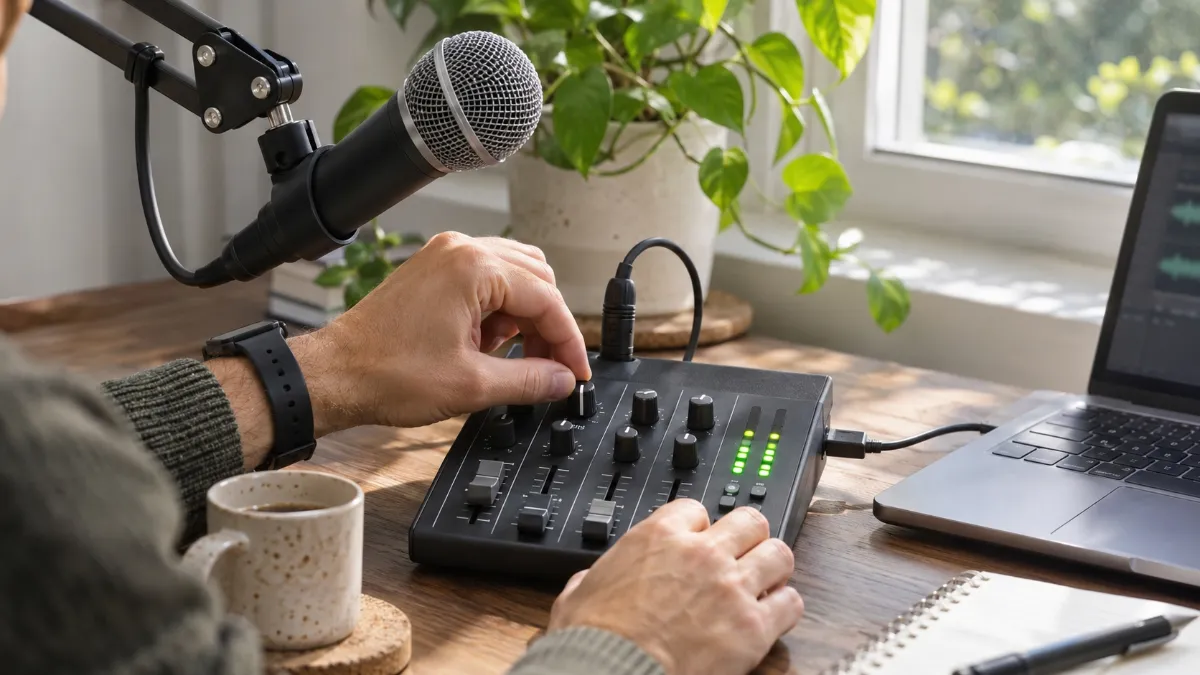
- Voice only. For talk shows, devotionals or interviews in the same room, your microphone is all BUTT needs. This is the simplest setup and the easiest to keep reliable.
- A physical mixer. Plug your microphones into the mixer, connect your music player or a second computer to another channel and send the mixer’s output to your computer by USB or through an audio interface. In BUTT, choose the mixer or interface as the input. You control every level with real faders, and BUTT sends the finished mix.
- Music from the same computer. If your music plays on the same computer as BUTT, you need a way to route that sound into BUTT’s input. A virtual audio cable does exactly that: free tools such as VB-Cable on Windows or BlackHole on macOS create a virtual input that collects your music and your mic. If you mix music with DJ software, Mixxx can broadcast directly to your station instead.
Whichever option you choose, listen through your headphones and watch the meter in BUTT. If the music drowns your voice, lower the music channel rather than pushing the mic until it distorts. Our guide to running a DJ radio show on a budget covers the music side in more depth.
Extra BUTT Features Worth Using
Once your first live show runs smoothly, two features in BUTT can save you work every week.
Recording your show. The record button in BUTT’s main window saves what you broadcast as an audio file on your computer, and in the settings you can choose the format and the folder. That gives you a copy of every show, ready to edit and publish as a podcast episode for people who missed it live. Our guide to turning your radio show into a podcast explains how to make the most of those recordings.
Sending your show or song name. In BUTT’s stream settings, you can update the song name that listeners see in their player, either manually, from a text file or from a supported music player. Even a simple title like the name of your show is better than a blank field. Clean metadata helps listeners know what they’re hearing and makes your station look more professional. Our guide to fixing radio metadata covers the rest.
Troubleshooting Common BUTT Problems
Even with careful setup, something will occasionally go wrong. These are the issues we see most often and how to fix them:
- BUTT won’t connect. Check the server type is IceCast, then compare the address, port, password and mountpoint with your Zeno broadcast settings character by character. Look for a missing slash at the start of the mountpoint or an extra space at the end of the password. If everything matches, check that a firewall or antivirus isn’t blocking BUTT.
- Connected, but listeners hear silence. BUTT is connected but not receiving sound. Open the audio settings, confirm the right device is selected and watch the level meter while you speak. If you use a mixer, make sure its main output is turned up.
- The sound is distorted. Your levels are too high. Lower the gain on your microphone, interface or mixer until the meter stays out of the red on your loudest moments.
- The stream keeps dropping. This is usually the connection. Switch from Wi-Fi to a wired cable, pause large uploads or downloads on the same network and, if needed, try a lower bitrate.
If the problem continues, our guides to common internet radio problems and radio stream buffering walk you through more fixes.
FAQ
Is BUTT free?
Yes. BUTT is free and open-source, and you can download it from its official website for Windows, macOS and Linux.
Can I use BUTT on my phone?
No. BUTT is a desktop program, so you’ll need a computer to use it.
What bitrate should I use in BUTT?
It depends on your plan and your connection. On Zeno, you can stream up to 128 kbps on Starter, up to 192 kbps on Prime and up to 320 kbps on Premier. For talk shows, 128 kbps already sounds clear.
What happens to AutoDJ when I go live with BUTT?
When BUTT connects to your station, AutoDJ stops automatically. When you disconnect BUTT, AutoDJ starts playing again on its own.
Can I use BUTT with Mixxx or other DJ software?
Yes, by routing the DJ software’s output into BUTT with a mixer or a virtual audio cable. Mixxx can also broadcast directly to your station without BUTT.
Your First Live Show Is a Few Clicks Away
Learning how to use BUTT is one of the simplest ways to bring live shows to your station. Install it, add your Zeno server, choose your format and your input, press play and check your stream on a phone. From there, AutoDJ covers the rest of the day, and you can focus on what you want to say on air.
If you haven’t created your station yet, start on Zeno and set up BUTT the same day. And before your first show, take a look at the most common online radio mistakes so you can avoid them from the start.
November 9, 2026