Radio Metadata: How to Fix Your Now Playing Info
Open your own station on a phone right now. Does it show the song title, the artist, and your artwork? Or does it show a blank field, a file name with underscores, or the words “Unknown Artist” sitting where your music should be?
That blank space is a radio metadata problem, and it is one of the most common issues in online radio. Radio metadata is the text and images that travel with your audio stream to tell listeners what is playing: song title, artist, album cover, and the other now playing details that appear on their devices. When it fails, your audio is still perfect and your programming is still solid, but on every screen where someone finds you, the station looks abandoned.
This guide is for independent station owners, community and faith-based broadcasters, school stations, and anyone running an online radio station from a small team. It explains what radio metadata is, how to fix it at the source inside your audio files, and how to keep it clean in the AutoDJ, in AzuraCast, and in LibreTime, so that every listener who finds you sees a station worth tuning in to.
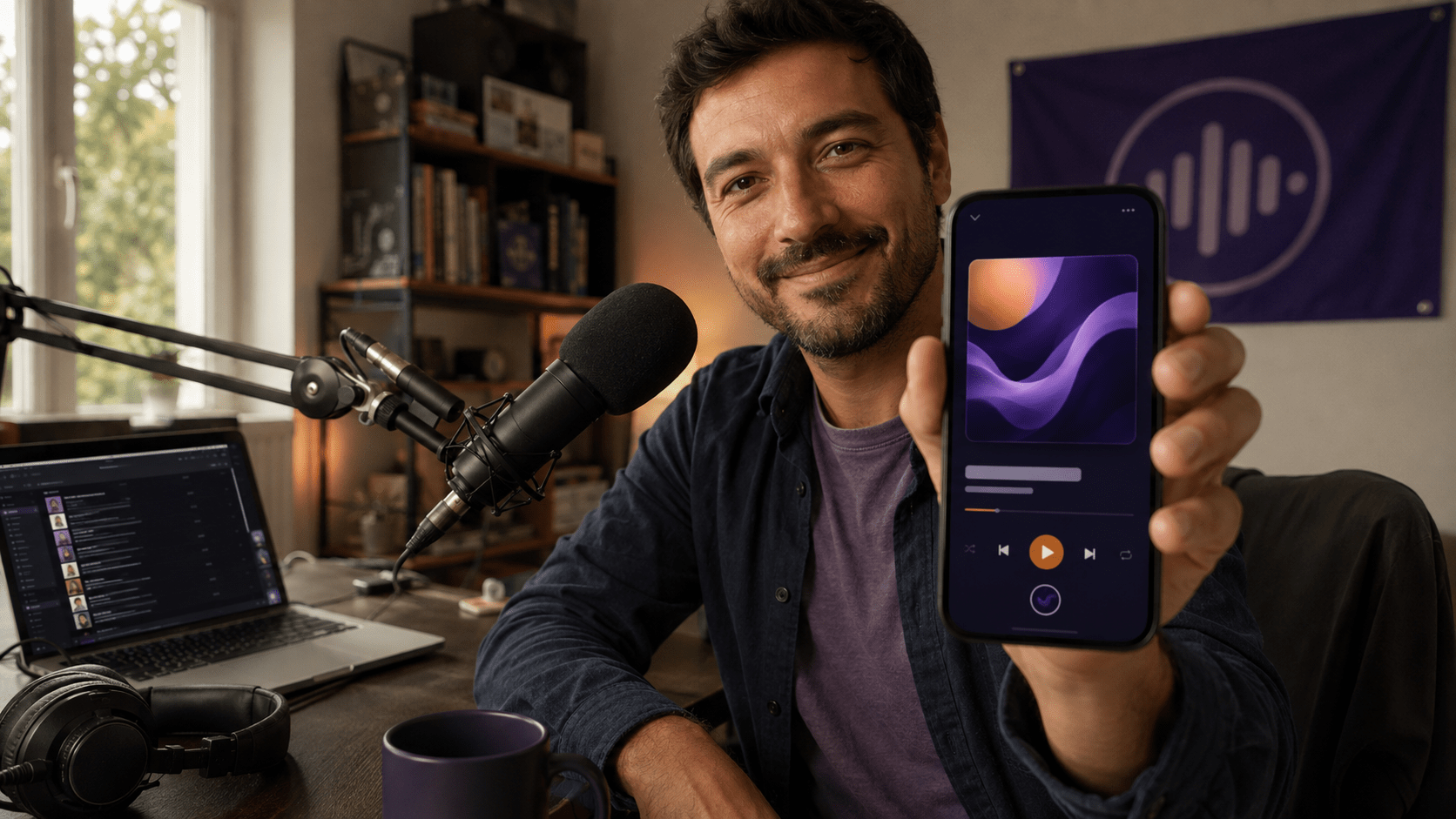
Screens are now part of the listening experience, not an accessory to it. We covered that shift in our guide to visual radio: the dashboard in the car, the lock screen on the phone, and the station page in a browser are all surfaces where your metadata is doing the talking for you. Clean metadata is the cheapest visual upgrade a station can make.
What Radio Metadata Actually Is
Radio metadata is the text and images that travel alongside your audio to describe what is playing. It is not part of the sound. It is a separate layer of information that players, apps, car dashboards, and directories read and display.
Most confusion about metadata comes from not realizing there are two different layers involved, and that a break in either one produces the same blank screen.
Layer one: the tags inside your audio files
Every music file on your computer can carry embedded tags: title, artist, album, year, genre, track number, and album cover. In MP3 files this system is called ID3. Each audio format stores this information in its own container, which is why the same track can look complete in one format and empty in another. Your automation software reads these tags when it loads a track.
Layer two: the metadata your stream sends out
When a track starts playing, your automation software passes the title and artist to the streaming server, which then pushes that text to every connected listener. This is the now playing information, and it is what makes the display change mid-song on a player that was already open.
Why the two get confused
If layer one is empty, layer two has nothing to send. If layer one is correct but layer two is misconfigured, the information exists but never reaches the listener. Knowing which layer is broken saves hours of troubleshooting, and the audit checklist at the end of this article isolates it in about ten minutes.
The Metadata Fields That Matter for Radio
A music library manager may offer forty fields. A radio station realistically needs six. Here is what each one does once your track is on the air.
| Field | Where it appears | What goes wrong |
|---|---|---|
| Title | Player, car dashboard, lock screen | Left as the file name, so listeners see 01_track_final.mp3 |
| Artist | Player, car dashboard, directories | Empty, or filled with the album artist instead of the performer |
| Album | Player, some apps, your microsite | Used for internal notes, which then leak onto public screens |
| Cover art | Player, app, microsite, social previews | Missing, low resolution, or a stretched non-square image |
| Genre | Directory placement and station browsing | Inconsistent genres across the library, so the station never groups cleanly |
| Year | Rotation planning and smart playlists | Blank, which breaks any rule based on decade or era |
For example, a track missing only its year still displays fine, while a track missing its title displays nothing useful at all. Title and artist are the two fields that appear on every screen, in every player, in every car. They are the fields that every online radio directory and app reads first. If you only ever fix two fields, focus on those.
How to Clean Metadata Inside Your Audio Files
This is the step most stations skip, and it is the one that fixes everything downstream. If the tags in the file are right before the file is ever uploaded, every system that touches it afterward inherits correct information.
Pick a tag editor and use only that one
A dedicated tag editor lets you edit multiple files at once instead of clicking through them individually. Mp3tag, Kid3, and MusicBrainz Picard are all free to download and widely used. You drop a folder from your computer into the editor, select everything, and fix an entire batch in one pass. The specific choice matters less than picking one and standardizing on it, because different editors write tags in slightly different ways and mixing them produces inconsistent libraries.
Understand ID3v1 versus ID3v2
MP3 files can carry two generations of tags. ID3v1 is a fixed block of 128 bytes at the end of the file, limited to thirty characters per field and built around an old Latin character set. ID3v2 sits at the beginning of the file, has no practical length limit, and supports Unicode. ID3v1 mostly survives today for backward compatibility with older software, and that is exactly where the trouble starts.
This is the direct cause of the accent problem. If your station plays music in Spanish, Portuguese, Arabic, or any language with characters outside plain English, and your player shows question marks or broken symbols where accents should be, you are almost certainly looking at old ID3v1 tags or a character encoding mismatch further down the chain. Write ID3v2 tags in UTF-8 and the problem usually disappears at the source.
Watch out for formats that cannot hold tags
Not every audio format carries metadata the same way. MP3 uses ID3. Lossless FLAC and OGG use a different system entirely. Uncompressed WAV files were never designed to hold tags, which is why a WAV upload often arrives in an automation system with nothing attached to it, no matter how carefully you named the file. If your library contains WAV files, convert them to a tagged format before uploading. Our guide to audio formats for internet radio covers which format to choose for which purpose.
Embed cover art the right way
The album cover should be embedded cover art inside the file itself, square, and at least 500 by 500 pixels. Rectangular images get cropped unpredictably across players, and images under a few hundred pixels look soft on a modern phone. Keep the file size reasonable, since artwork is stored inside every single track and a heavy image multiplied across a large library adds up fast.
Standardize before you upload, not after
Consistency is the whole point here. Agree on one convention and apply it to your entire music library: artist name written the same way every time, no all-caps titles, no bracketed tags like [Official Video] left over from downloads, no track numbers glued to the front of titles. Ten minutes of cleanup on a batch of fifty files saves you from editing those same fifty entries inside three different systems later.
Metadata in the Zeno.FM AutoDJ
When you upload music to the AutoDJ, Zeno.FM reads the tags already embedded in each file and uses them to build your library and to announce each track on the stream. Files that arrive with clean tags are immediately correct everywhere. Files that arrive with empty tags stay empty until someone fixes them.
That single behavior explains most of what broadcasters report as an AutoDJ metadata bug. The AutoDJ is not inventing or losing information. It is faithfully passing along what was inside the file. This is why the tag editor step above is not optional housekeeping but the actual fix.
A practical routine: prepare each batch of music in your tag editor, verify that title, artist, and album cover are complete, and only then upload. Clean tags also make your playlists easier to organize, because every rule you write depends on the same fields. If you are building or reviewing your automation setup, our guide to radio automation for small stations walks through how the pieces fit together.
Metadata in AzuraCast
AzuraCast, which is built into Zeno.FM, gives you a media manager where every track in the library can be inspected and edited from a browser, with no software to install on any one computer. That matters for stations where several users share programming duties. Selecting a file opens its fields, so you can correct a title, fix an artist name, or replace artwork without going back to the original file on your computer.
Two capabilities are worth knowing about. The first is that AzuraCast can override what gets displayed for a track without altering the underlying file, which is exactly what you want for jingles and station identifications whose real file names should never appear on a listener screen. The second is a bulk import and export tool that produces a spreadsheet of your entire library, including metadata, playlist assignments, and cue points. You edit the spreadsheet and upload it back, and every record updates at once.
AzuraCast also maps certain tags to custom fields, so information you write into a file can be surfaced in your player or pulled through the API. If you are running a large library, the export, edit, and re-import cycle is far faster than opening tracks one by one.
Metadata in LibreTime
LibreTime imports whatever is in the ID3 tags of the files you add, and its documentation is direct about the consequence: if those tags are wrong or incomplete, you have to correct them yourself. Tracks that arrive with missing artist or title information also become genuinely hard to find in a large library, because search depends on the same fields.
On the output side, LibreTime lets you choose what the stream label sends: artist and title, show name with artist and title, or station name with show name. There is also an off-air metadata field that defines what listeners see when nothing is scheduled, which is worth setting to something that looks intentional rather than leaving it empty.
One recurring issue in LibreTime setups is character encoding. Accented characters can display correctly inside LibreTime while arriving broken on the stream, because the streaming server is interpreting the text with the wrong character set. The fix lives in the streaming server configuration, where the mount point needs to be told to use UTF-8. If your accents look fine in your dashboard but wrong in the player, that mismatch is the first place to look.
Jingles, Ads, and Live Shows: The Three Usual Suspects
Even a well-tagged music library breaks in three predictable places, and each one interrupts your now playing information at the worst possible moment.
- Jingles and station IDs. These files rarely have proper tags, so the player suddenly shows a file name in the middle of your rotation. Create a display title that reads like something you would happily show a listener, such as your station name or slogan.
- Sponsored spots and promos. Internal naming like SPOT_client_v3_FINAL leaks straight onto public screens. Tag them with a neutral label instead.
- Live shows. When a host connects from DJ or broadcasting software, the automated track information stops and whatever that software is configured to send takes over. Many setups send nothing, which is why a two-hour live set can display as a single frozen line. Check the metadata settings inside the broadcasting software before the show, not during it.
Every one of these is a five-minute fix that a listener notices immediately.
Your Microsite: Where Metadata Becomes Discovery
Your station page on Zeno.FM is fed by the same metadata layer. Artist, title, and artwork appear there automatically, which means the page either looks like a living, curated station or like an empty shell, depending entirely on work you did or did not do inside your files.
This is the part broadcasters underestimate. A station page is often the first thing a new listener sees, arriving from a search, a shared link, or a social post. For many online radio stations it does more first-impression work than the website does, and it is how listeners around the world reach a station they have never heard of. If the page shows a real song by a real artist with real cover art, the station reads as active. If it shows a blank field, the visitor has no reason to press play.
Directories and apps serve that same information to listeners on every platform. It travels into mobile apps and onto CarPlay and Android Auto screens. One metadata layer, cleaned once, improves every surface at the same time. That is an unusually good return for an afternoon of work.
A Ten-Minute Radio Metadata Audit
Run this the next time something looks wrong. Each step tells you which layer is broken.
- Open your station in a player and note exactly what is displayed: blank, a file name, a frozen title, or broken characters. The symptom points to the cause.
- Check whether the problem affects every track or only some. If only some, the tags in those specific files are the problem.
- Open one problem file in a tag editor and look at the title and artist fields. Empty fields mean your automation has nothing to send.
- Check what your automation dashboard shows internally. If it is correct there but wrong in the player, the break is between the automation and the stream.
- If accents or non-Latin characters are broken, treat it as a character encoding issue and check the tag version in the file first, then the streaming server setting.
- Play a jingle and a promo on purpose and watch the display. Fix any file names that appear.
- Open your station page and confirm the artwork is square, sharp, and current.
Repeat this audit once a quarter, and every time you add a large batch of music to your radio station. Check it on at least two different devices, because a player on a phone and a dashboard in a car do not always display the same fields.
Frequently Asked Questions About Radio Metadata
Why does my player show the file name instead of the song?
Because the file has no title tag. This is not an error in your automation or your streaming service. When the title field is empty, most systems fall back to the file name so that something appears rather than nothing. Open the track in a tag editor, fill in the title and artist, and re-upload it. If the file is a jingle or an identification, set a display title that reads well to a listener instead of leaving the raw file name in place.
Why are accented characters broken on my stream but fine on my computer?
This is a character encoding mismatch. Either the file carries old-style tags built on a limited character set, or the streaming server is interpreting the text with the wrong encoding. Write modern tags in UTF-8 first, and if the problem persists only on the stream, the streaming server configuration is where to look next.
Do I need to embed cover art in every single track?
For music, yes, if you want artwork on player screens, in apps, and on your station page. Artwork embedded in the file travels everywhere the file goes. For jingles and spots, embedding your station logo is a reasonable substitute so that no track ever displays a blank image.
Does metadata affect whether people find my station?
Indirectly, and significantly. Directories, apps, and station pages use title, artist, genre, and artwork to display and group every radio station they list, and your now playing information is part of what they read. A station with clean, consistent information presents as active and professional, while one with blank fields gives a new listener no reason to stay or to listen. The audio quality is the same either way, but the first impression is not, and fixing it costs you nothing but time.
Radio metadata is unglamorous work with a visible payoff for any radio station. Clean it once at the file level, keep it clean as you add music, and every screen your station touches gets better at the same time.
August 12, 2026