Common Internet Radio Problems (and How to Fix Each One)
Most internet radio problems fall into three groups: your station won’t play, it plays but sounds wrong, or it sounds fine but nobody is listening.
If you run a small, volunteer-staffed station – a community, church, school, or diaspora station – you probably know the feeling. A listener texts you that the stream is down, or your host notices silence mid-show, or your stats look flat after weeks of effort. Internet radio requires a stable WiFi or wired internet connection, and the chain from microphone to listener has several links that can break quietly. The good news: most of these problems have simple, fixable causes.
This guide is a symptom-first hub, not a deep technical manual. Find your issue, try the first fix, then follow the linked guide when you need more detail. The examples and fixes here are written with Zeno.FM stations in mind, but they apply to most community radio stations broadcasting online.
Quick Diagnosis Table: Match Your Symptom to the Right Fix
Before you scroll through the full guide, find your symptom below. Each row points to the section where you will find the likely cause and the first thing to try.
| Symptom | Likely cause | Check first | Full guide |
|---|---|---|---|
| Station page shows offline, encoder errors | Wrong server address, port, or password | Re-copy credentials from your Zeno.FM account | Encoder for live broadcasting |
| Encoder connected but no audio for listeners | Wrong input device or muted channel | Watch encoder level meters while you speak | How to automate your radio station |
| Constant buffering or stream cutting out | Unstable upload or bitrate too high | Test from another network; lower bitrate | How to fix radio stream buffering |
| Plays on laptop but not on some phones or speakers | Unsupported format, codec, or bitrate | Test stream URL in a different browser and device | Audio formats for internet radio |
| Audio sounds distorted, too quiet, or jumps in volume | Gain set wrong or inconsistent file loudness | Adjust gain so meters stay in the middle range | Home studio setup guide |
| Echo or feedback during calls and co-hosted shows | Return audio feeding back into the mix | Use headphones; mute studio speakers | How to take live calls without echo |
| Now Playing shows wrong or missing track info | Missing metadata tags on audio files | Check artist and title fields in a tag editor | How to fix your radio metadata |
| Listeners say every song repeats | Library too small or rotation rules too tight | Expand library and loosen repeat intervals | Radio music rotation guide |
| Unsure if your music is properly licensed | Licensing requirements vary by country | List what you play and where listeners are | Internet radio licensing guide |
| Low listener numbers or confusing stats | Promotion gap or metric misunderstanding | Learn the difference between sessions and listening hours | How to read your listener stats |
Before You Change Anything: A Three-Minute Check
Before adjusting any settings, run a quick three-minute check. This method rules out many streaming issues before you touch your encoder or mixer.
Grab a smartphone or second device and listen to your station on a different internet connection – for example, use mobile data instead of your studio Wi-Fi. If both connections fail, the problem is likely on your station side. If only one fails, it may be a local network issue. Testing other stations from the same device can help identify whether the issue stems from your specific stream or the listener’s network. Internet connection problems can sometimes stem from simple router faults or ISP service outages, so restart your router before assuming the worst.
Check whether the problem affects only the live stream, only AutoDJ, or both. Note the time, the region complaints came from, and what changed right before the issue appeared – a new cable, updated software, a moved wifi router, or new encoder settings. Check your playback device’s internet connection stability by loading a normal website.
Have these ready before diving deeper: the time the issue started, which device and network you tested on, whether the problem is live or AutoDJ or both, and the last change you made.
When Your Station Won’t Play
This section covers internet radio problems where the stream refuses to start or cuts out within a few seconds of connecting. The possible causes usually trace back to encoder settings, your studio internet connection, or basic audio routing – not the hosting platform itself.
If you have already done the three-minute check, you know whether the fault hits only live broadcasting, only AutoDJ, or both. Use that answer to narrow your search in the sections below.
Your Station Shows Offline or the Encoder Won’t Connect
Listeners see your station page as offline, or your encoder shows connection errors when connecting to the server. Streaming interruptions can occur due to server outages or app issues, but the most common cause is simpler: the wrong server address, port, mount point, or password pasted into your encoder. An outdated station URL can also prevent streams from playing – station unavailability may indicate the broadcaster has changed its streaming address. Confirm your encoder is actually started and that your computer can access a normal website on the same network. The first fix: carefully re-copy all credentials from your Zeno.FM account into your encoder (such as BUTT or Mixxx) and reconnect. Internet radio may also stop working due to temporary server outages, so check if the problem clears after a few minutes.
For a full walkthrough, see our guide on choosing an encoder for live broadcasting.
Dead Air: Connected but Silent
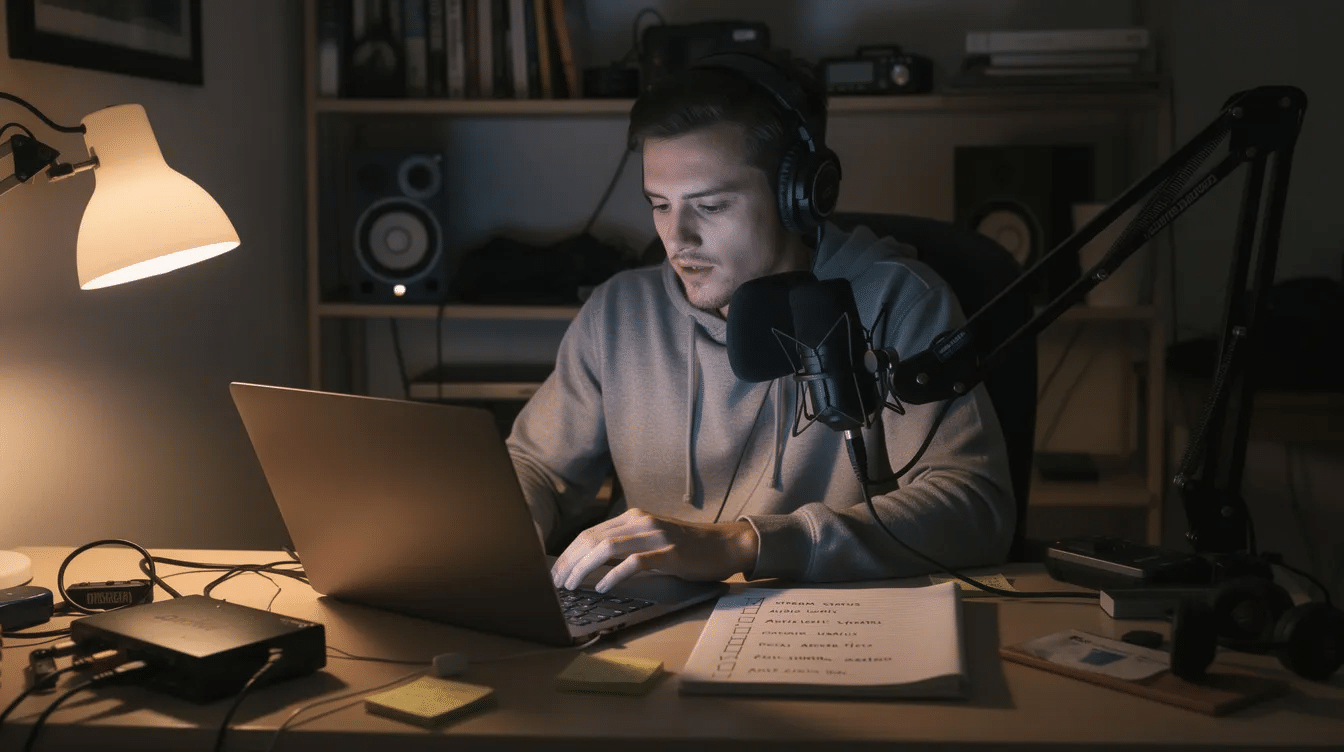
Your encoder shows “connected,” listeners see the station as live, but the audio is silence or faint background noise. This usually means the encoder is sending an empty signal – the wrong input device is selected, a channel is muted on your mixer, a cable is unplugged, or a fader is down. Speak into your microphone and watch the encoder’s level meters. If nothing moves, work backward: check the mixer channel, the cable, and the input device selection until you see the meters respond. AutoDJ keeps your station playing when no one is live, so switch to it while you troubleshoot your hardware.
Learn how to automate your radio station so dead air never reaches your listeners.
The Stream Keeps Buffering or Cutting Out
Listeners hear constant buffering, the stream stops loading after a few seconds, or playback pauses frequently – even on decent Wi-Fi. Audio buffering occurs due to insufficient internet bandwidth, and live streaming is more sensitive to network issues than file playback or downloading podcasts. Internet radio interruptions often stem from unstable connections, and a weak wifi signal can make things worse because signal degradation can be caused by physical obstructions or competing wireless devices nearby.
Frequent pauses in audio playback can be caused by network congestion, and high-traffic events can overload streaming servers, causing additional interruptions. A wired ethernet connection is generally more stable than Wi-Fi for streaming. Pausing bandwidth-heavy activities – video calls, large downloads, or cloud backups – on the same network can help. On the studio computer, check your task manager (or activity monitor on a Mac) and close any heavy programs running in the background that could affect upload performance.
Our full guide explains how to fix radio stream buffering with step-by-step diagnosis.
It Won’t Play on Some Phones, Browsers or Speakers
Your station plays fine on your laptop in Google Chrome but fails on a listener’s iPhone, car stereo, or older internet radio device – sometimes with no clear error, sometimes just silence. This is usually a compatibility issue: certain devices and apps cannot handle a specific audio format, codec, or bitrate. Data usage for streaming varies with audio bitrate and listening duration, and some older hardware simply cannot decode higher bitrates. Firmware updates can resolve streaming issues on devices, so suggest listeners check their manufacturer’s site for the latest firmware for their model. Some internet radio apps may freeze or crash due to outdated software or insufficient memory – common causes for app crashes include outdated software and corrupted data. Clearing the app cache can help resolve certain playback issues, and updating software can resolve compatibility bugs and improve performance. Playback may also stop when the screen locks due to battery-saving settings on a smartphone. If listeners need to add your station manually, they can use PLS URLs to set up station presets. On your end, test your stream URL in a different browser and on a phone, then consider a more compatible format and bitrate.
For more detail, read our guide on audio formats for internet radio.
When Your Station Sounds Wrong
Not all internet radio problems are outages. Many show up as poor audio quality, uneven volume, confusing echo on calls, or wrong track information – issues that quietly push listeners away over time, even though the stream never technically goes offline. Delays are common in internet radio due to encoding and buffering processes, so some quirks are normal, but persistent sound issues deserve attention.
Distorted, Too Quiet or Jumping Volume
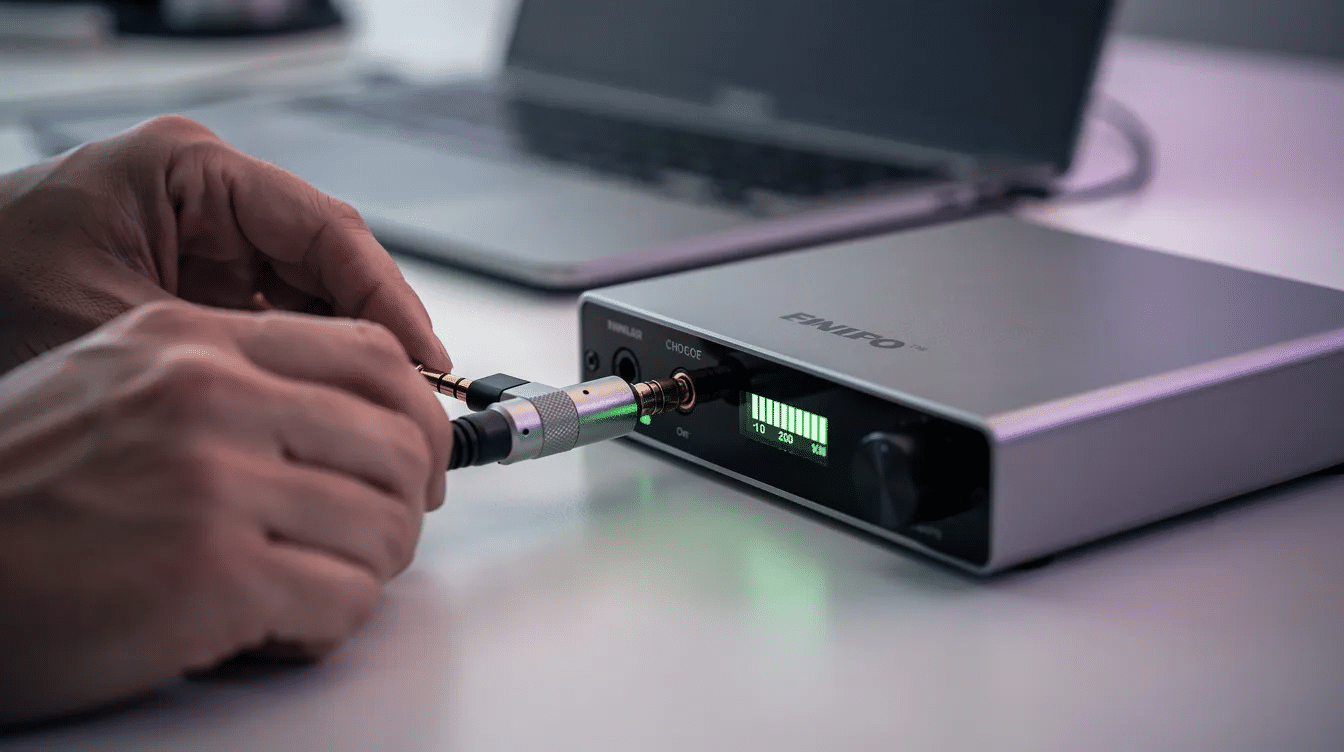
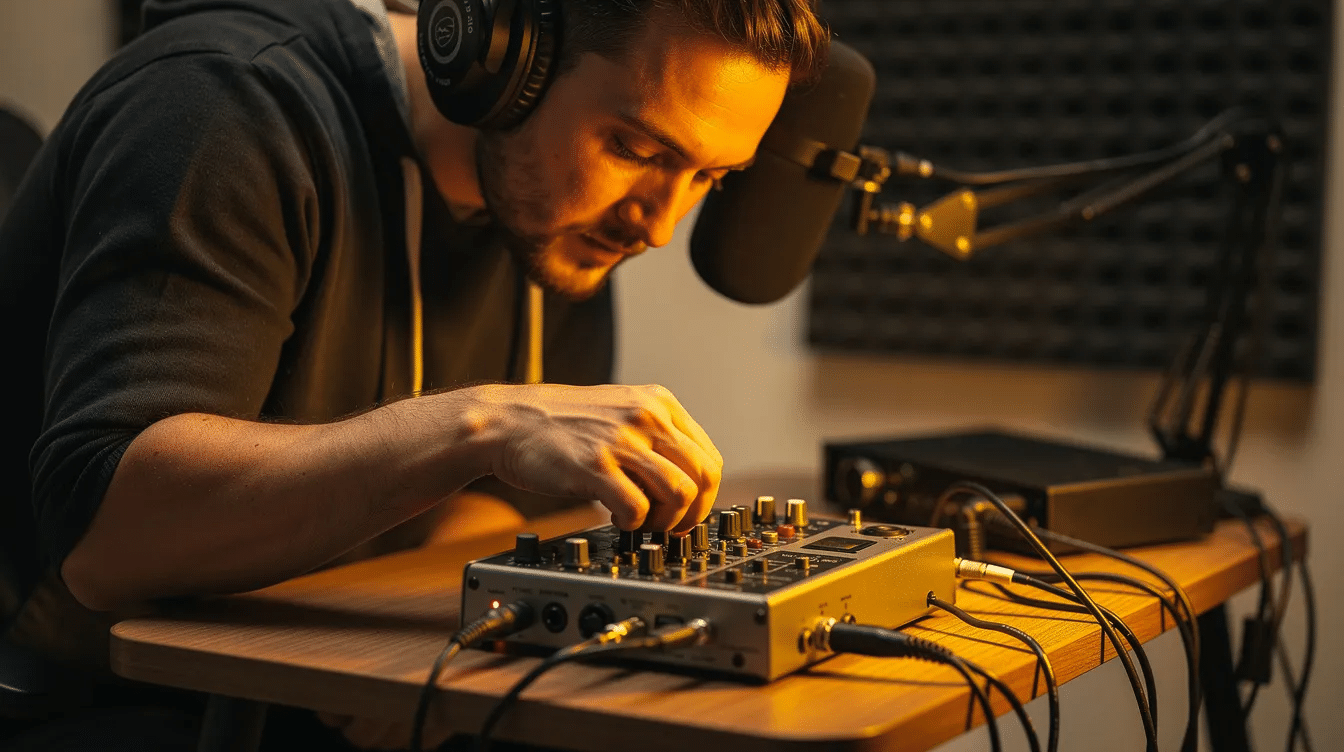
Music sounds harsh or fuzzy, your host’s voice is barely audible compared to songs, or loudness jumps wildly between segments. Audio quality issues can arise from incorrect audio settings or equalizer configurations, and audio distortion can be caused by low-quality source files or improper device configuration. Low-quality audio may also result from low-bitrate streams. The first fix: set your mixer or interface gains so normal speaking keeps the level meters in a healthy middle range – never pinned at the top, never barely moving. Then test a few songs and adjust your files so they play at a similar perceived volume. Gradually standardize file loudness when preparing playlists so your station sounds consistent all day.
Our home studio setup guide covers gear, gain staging, and cable choices in full.
Echo or Feedback on Calls and Co-Hosted Shows
A caller or remote co-host hears their own voice back with a noticeable delay, or the live stream has a hollow, echoey quality during interviews. This usually happens when the return audio – the mix going back to the guest – includes the guest’s own microphone feed. Open speakers near a studio mic make it worse. The fix: use closed-back headphones, mute any speakers in the room, and simplify your audio routing so the caller gets a mix without their own voice returned (a basic mix-minus setup).
Our guide explains how to take live calls without echo.
You can also learn how to co-host a radio show remotely with clean audio for both sides.
Wrong or Missing Now Playing Info
Your player shows “Unknown – Unknown,” displays the same song title long after the track changed, or shows garbled characters instead of the artist name. Metadata errors may show incorrect track and artist information due to source feed inconsistencies – most often, the audio files themselves have missing or messy ID3 tags, or the encoder is not passing updated metadata from the playout system. Open a few library files in a tag editor, confirm that the artist and title fields are correctly filled, and then test how changes appear on the live stream. Clean metadata helps listeners tune in to discover new music and trust your station, especially during specialty or request shows.
For a complete walkthrough, see how to fix your radio metadata.
When Your Station Isn’t Growing
Some internet radio problems show up not as broken audio but as stagnant listener behavior. Repeating playlists, licensing uncertainty, or confusing statistics can quietly stop a small station from growing beyond its first core fans. All three issues below are partly about planning – your music library, your legal responsibilities, and your approach to promotion and analytics. Refer back to the quick-diagnosis table above; these audience issues are real problems worth fixing.
Listeners Say Every Song Repeats
Your audience complains that the same songs seem to happen every hour, or that the station feels like a short playlist looping all day. The usual cause: a music library that is too small for the number of hours you broadcast, or rotation rules so tight that popular tracks come back far too quickly. The first fix is to expand your library within your format and loosen rotation rules so recently played songs wait longer before returning. Check how often your “power” tracks appear across a typical day and rebalance categories so there is enough variety.
Our radio music rotation guide walks you through category setup and scheduling.
You’re Not Sure Your Music Is Licensed
Hosts or leaders at a community, church, or school station often wonder whether playing commercial music online is actually legal. Licensing needs depend heavily on your country, the rights involved, and whether your station plays recorded tracks, live performances, background music, or a mix. As a first step, make a list of what you play and the location where most of your listeners tune in. Ignoring licensing can turn a small concern into a much larger one, so it is worth getting clear early.
Our internet radio licensing guide covers what you need to know by region.
Low Listener Numbers or Stats That Don’t Add Up
You see only a handful of current listeners, or you are confused about why “sessions” and “listening hours” tell different stories. Low numbers over the last few days – or weeks – often point to promotion and content gaps, not necessarily a technical streaming issue with your station. Zeno.FM analytics shows listening hours, sessions, average listening minutes, countries, and devices, so start by learning what each metric means. Track one or two shows over several weeks to see how changes in promotion or schedule affect the data.
Learn how to read your listener stats and make better programming decisions.
If growth is your main goal, our guide can help you get your first 1,000 listeners.
Build a Simple Troubleshooting Routine
A light, repeatable routine prevents many internet radio problems from turning into emergencies. You do not need an engineering background – just consistency.
Once a week, use a phone and basic headphones to tune in to your own station from a different internet connection. Check for buffering, audio quality, and whether the now playing info updates correctly. Wi-Fi channels can be switched to reduce interference if your studio wifi connection is unreliable. Reboot devices in a specific order – router first, then computer, then encoder – to resolve lingering network issues. If you notice the same issue across multiple tests, use a wired connection for the studio computer for more stable streaming performance. Unlike internet radio, DAB+ radio works independently of the internet entirely, so your station’s reliability depends on your network – treat it seriously.
Keep a simple incident log near your studio laptop: date, time, symptom, what changed recently, and what fixed it. Keep AutoDJ loaded with fresh content so the station keeps running if your live encoder or home internet connection fails. Assign at least one backup contact who knows how to start the encoder and where the Zeno.FM account credentials are stored securely. Note the antenna or router location if you rely on wireless – even small changes in placement can reduce audio dropouts from Wi-Fi interference or weak signal strength.
FAQ
Why does my station work for me but not for some listeners?
Your studio computer plays the stream locally, but listeners in other regions or on different devices may struggle. An older browser, a phone with an unsupported codec, or a weak wifi signal on the listener’s end can all cause playback issues. Test from a different network, try lowering the encoder bitrate slightly, and ask affected listeners what app, device, or browser they use. We hope this narrows down the cause quickly.
What should I do first when my station goes silent?
Follow the three-minute check: listen from another device on a different network, confirm whether AutoDJ still plays, and see if the encoder is connected with moving level meters. Note the time and any recent changes. Then jump to the matching section in this hub – offline, dead air, or buffering – based on what you observe.
How do I know if a problem is on my side or the listener’s?
If multiple listeners in different locations report the same issue, the problem is likely on your station or server side. If only one person or one device type struggles – for example, only in a car or only on an iPhone running iTunes – it may be a local or device-specific issue. Test from another network, check your encoder and AutoDJ status, and compare what your analytics show for affected regions.
Keep Your Station On Air
Most internet radio problems come down to a handful of fixable causes: a misconfigured encoder, a muted channel, an overloaded connection, or a library that needs attention. Treat this hub as your checklist – start with the symptom, try the first fix, and follow the linked deep-dive guides when you need more depth.
You do not need an engineer on staff. A consistent troubleshooting routine, a loaded AutoDJ, and a calm approach will keep your community, church, or school station reliable. Ready to keep your stream running smoothly? Go live on Zeno.FM and give your listeners the station they deserve.
October 15, 2026