How to Co-Host a Radio Show Remotely (Without Talking Over Each Other)
To co-host a radio show remotely, one host’s computer acts as the home base: it plays the music, receives the other hosts’ voices over the internet, and sends a single combined mix to your stream. This guide is for small internet radio stations – community, church, school, nonprofit, and diaspora shows – whose hosts live in different cities or countries and still want to share a live broadcast as equals.
This article is about equal co-hosts sharing a full show together, not about taking live calls on internet radio. You will get practical, step-by-step help for making your remote team sound like they are sitting in the same studio. All you need is simple gear, basic remote broadcasting tools, and good habits around timing, cueing, and backup plans. You do not need expensive hardware audio codecs or complex studio wiring – a laptop, stable internet, headphones, and a basic audio interface are enough to get started.
Remote Co-Hosting vs. Taking Calls vs. Handing Over the Show
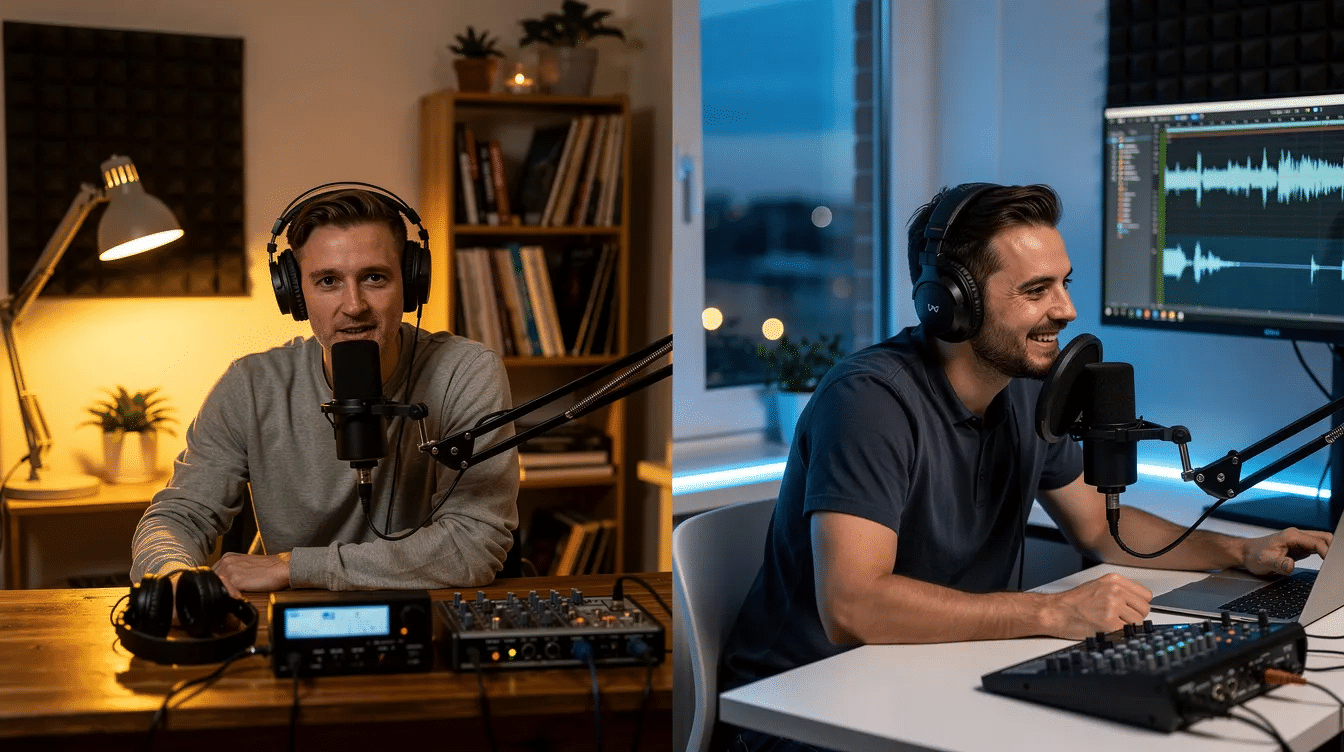
Remote co-hosting means two or more regular presenters share a full live show as equals from separate locations. Reliable audio technology and clear communication protocols enhance remote broadcasting, and this setup is different from both call-in segments and simple show handovers. Remote broadcasting allows contributions from outside traditional studios and expands the range of voices in programming.
Here is how co-hosting differs from taking listener calls:
- Callers usually join for a few minutes to share an opinion or request, then hang up. Co-hosts stay for the entire show.
- Call-in workflows use similar audio tools but focus on managing brief, one-at-a-time phone connections rather than ongoing conversation.
- Co-hosts control music, segments, and transitions together. Callers do not.
Remote co-hosting is especially useful for stations with volunteers spread across borders:
- Bilingual and diaspora stations can bring hosts from multiple countries together to sound like one united team.
- Remote contributions can be made from anywhere with internet access, so geography is no longer a barrier.
- A station can feature language diversity and cultural perspectives that a single-location setup never could.
“Handing over the show” is a simpler arrangement:
- A single live host connects to the station at a time, then disconnects when another location takes over.
- There is no real-time back-and-forth conversation on air.
- This is easier to set up but does not give your audience the energy of two hosts riffing together.
A few scenarios where remote co-hosting works well: a Sunday church service with one host at the church and another at home, a school show where alumni join from abroad, a community news show covering breaking news or sporting events with co-hosts in different cities, or a weekly culture show where each host brings a local scene to the table.
Two Ways to Connect Co-Hosts
There are two main connection models for remote co-hosting. The first – one home base that mixes everything – is the recommended approach for most stations. The second – handing the encoder connection from one location to another – is simpler but does not allow true simultaneous conversation.
Both models rely on modern remote broadcasting, which uses internet connections for audio transmission. Audio codecs compress sound data for efficient transmission, but you do not need to understand the technical details; your software handles it. Whichever model you choose, your Zeno.FM stream still has only one live source connected to the streaming server at a time.
Model 1 – One Home Base Mixes Everything
This is the recommended approach. One host’s computer runs the playlist or automation software, accepts other co-hosts’ audio via a browser-based studio link or a regular voice-call tool, and sends a single mixed signal to the encoder. Professional remote broadcasting often uses tools designed for uncompressed audio, but affordable solutions work well for most community stations. Systems like GatesAir’s Intraplex enable affordable remote audio contributions for stations that want to invest further.
- All music, jingles, and beds play from home base. Remote co-hosts only send their voice.
- This keeps levels and timing consistent and makes it easier to control a live remote broadcast.
- One person handles the faders and timing while others focus on content and speaking.
The simple signal flow looks like this: microphone into audio interface at each location → internet connection between co-hosts → home-base mixer or virtual mixer → encoder → Zeno.FM stream.
If you use a hardware mixer at home base and want to send co-hosts a return feed without their own voice (to avoid echo), you may need a routing called “mix-minus.” You can read about how mix-minus works in our separate guide – there is no need to re-explain the cabling here.
Model 2 – Hand Over the Encoder Between Locations
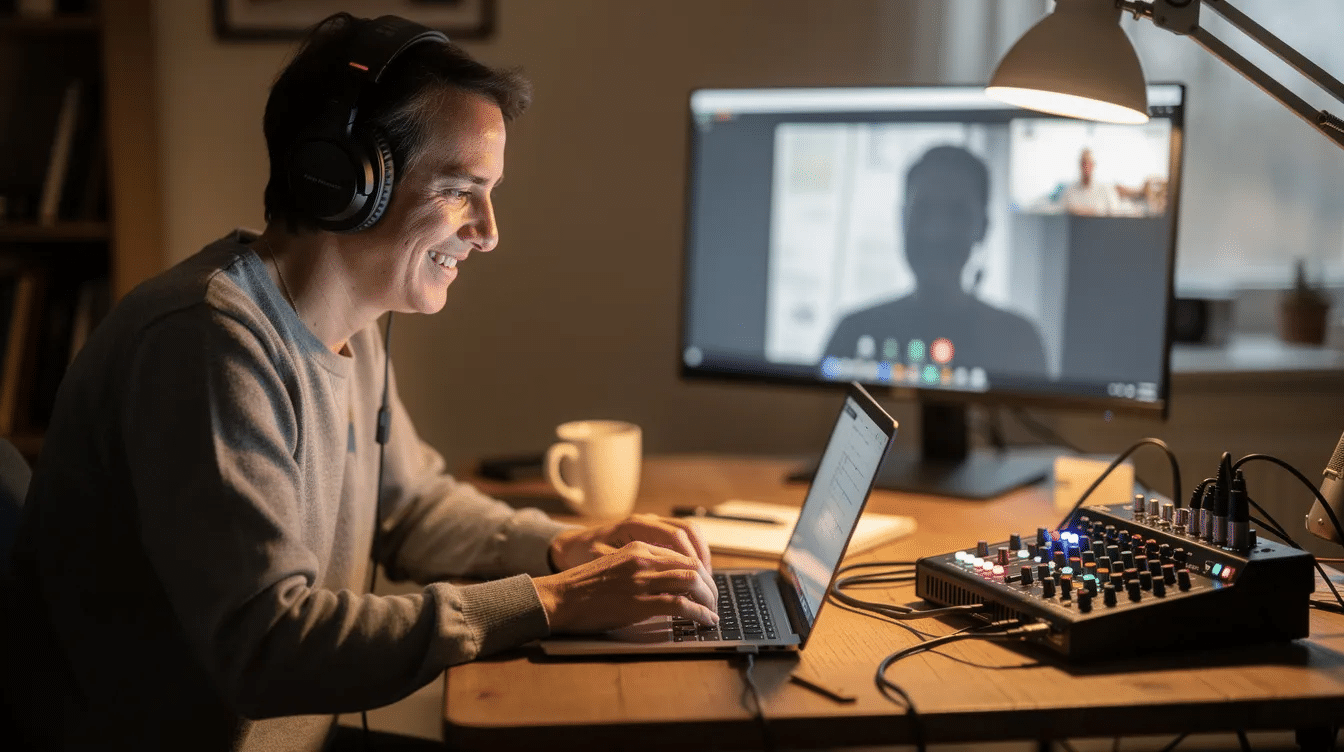
In this model, each host has their own simple studio and encoder. Only one of them connects to the stream at a time, using tools like BUTT or Mixxx or a similar software encoder.
- This is not true simultaneous co-hosting. Only one location is on air at once.
- Co-hosts may coordinate using a back-channel call, but they take turns leading segments.
- This works well when internet is unreliable at one site, when time zones make it hard to be live together, or when one host is only available for a specific hour.
To plan clean handovers: agree on exact times in the rundown, fade out at the first studio, disconnect the encoder, wait a couple of seconds, then have the second host connect and do a short reset for listeners. If hosts truly cannot share live time, they can record segments separately and assemble them with radio voice tracking instead of forcing a complicated live setup.
What Each Co-Host Needs
Every co-host should have similar basic gear and environment so the show sounds consistent, even though they are in different rooms or countries. Remote broadcasting requires an internet-connected device and headphones at minimum, and stable internet connections are crucial for reliable remote broadcasting.
Core items each co-host needs:
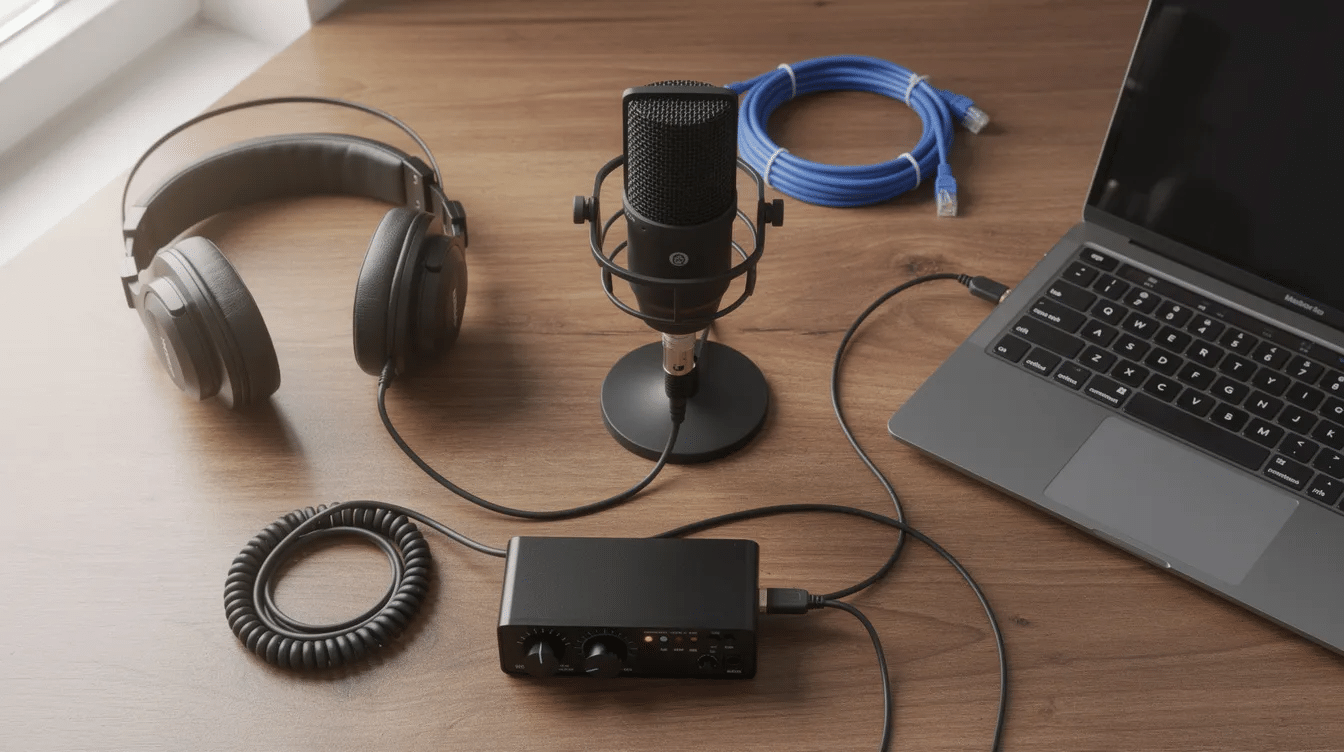
- A reliable computer or laptop
- Wired internet via an Ethernet cable instead of Wi-Fi to reduce packet loss
- Use closed-back headphones to prevent microphone bleed and feedback
- A dynamic microphone on a stand or boom arm
- Professional setups often include external USB microphones and audio interfaces – even an affordable entry-level interface improves sound dramatically
Room acoustics matter more than expensive equipment. A quiet, soft-furnished room with curtains, rugs, and bookshelves reduces echo and makes remote broadcasting feel “in studio.” A short walkthrough of basic home studio setup can help all co-hosts match mic distance, gain levels, and noise control before the first show.
For connectivity between co-hosts, you can use a browser-based studio link, a general-purpose video-call tool, or a dedicated low-latency audio connection. Tools like RadioMan Lamppu allow contributions via smartphones and tablets, and the platform won the RedTech Best in Show Award at IBC2025. Modern solutions require only 1–2 Mbps upload speed for reliability. Only the home base (Model 1) or the currently live host (Model 2) needs an encoder application connected with the credentials in their Zeno.FM account.
Step-by-Step: Set Up a Remote Co-Hosted Show
Follow this numbered checklist to go from planning to your first live show. Reliable internet connections are crucial for successful remote broadcasting, so test everything before show day. Pre-show checklists ensure that both hosts are prepared before going live.
- Plan your show format together. Decide length, regular segments, music vs. talk balance, and whether you will use Model 1 or Model 2.
- Set up your Zeno.FM station and note where to find your stream credentials, so one computer can act as the encoder home base or each host can connect in turn.
- Install your chosen encoder for live broadcasting and test connecting to your Zeno.FM stream during off-air hours.
- Connect microphones, audio interfaces, and headphones at each location. Set input gains so voices are clear but not clipping, and confirm that speakers in the room are muted during live segments.
- Choose and test your co-host link (browser-based studio link, voice call, or similar). Make sure everyone can hear each other cleanly without echo.
- Do a full rehearsal off-air. Run through an entire show outline, including song intros, transitions, and back-announces. Record it locally at home base to review sound and timing.
- Create a simple shared rundown document with segment times, who leads each part, where imaging plays, and when to reset the show ID.
- On show day, connect early. Verify levels, check that AutoDJ will take over if you disconnect, and only then start the encoder and open your microphones for the live remote broadcast.
How to Handle Latency and Stop Talking Over Each Other
There are two kinds of delay to understand. Stream delay is the few seconds your audience hears later due to stream buffering – that does not affect co-hosts. Conversational latency is the small delay between co-hosts hearing each other on the call, and it is this delay that can make you talk over each other. Latency can disrupt natural conversation flow during broadcasts, and synchronization issues arise from delays between studio and remote contributors.
Co-hosting requires synchronization, reliable technology, and clear communication. The goal is not to eliminate latency completely but to work with it:
- Always use names when handing over: “Maria, what do you think?” This gives the other person a clear cue.
- Pause half a second after asking a question before the other host responds.
- Avoid jumping in the instant someone seems to finish a sentence.
Agree on verbal and non-verbal cues for smoother conversation flow. Use visual backchannels for cues in remote communication – one host raises a hand on camera, or types a short message in a private chat, so others know to stay silent. Communication requires separate channels for on-air and private talkback, so keep a back-channel text chat or muted second call running for countdowns, last-minute changes, and signals like “wrap up soon.”
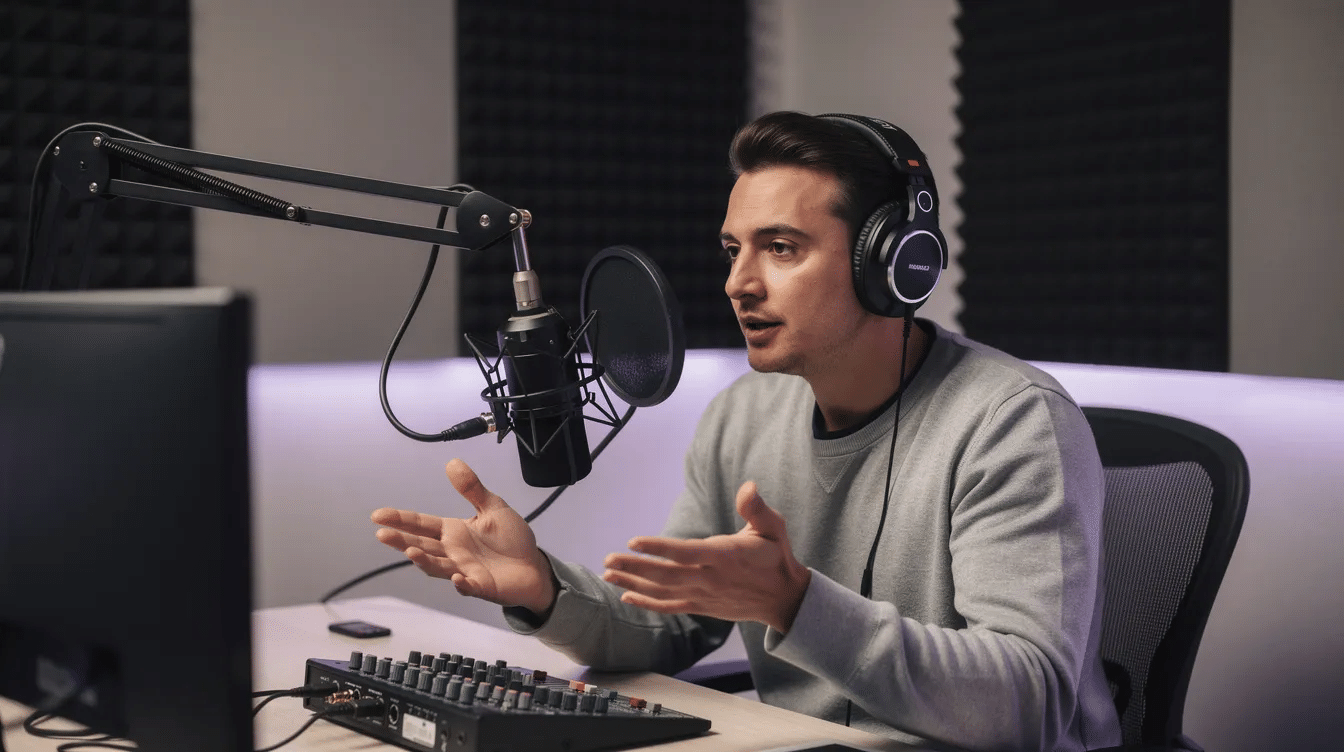
The home base host, or a designated “conductor,” should control most transitions: cueing others in and out, introducing segments, and deciding when to move on. This reduces accidental cross-talk. After each show, listen back to segments where you talked over each other and adjust patterns and pauses for the next week.
Plan B When a Connection Drops
Internet connections sometimes fail during live broadcasts, and planning for this makes you sound professional and calm on air. Technical troubleshooting is challenging for non-technical contributors, so keep your backup plan simple and written down.
- AutoDJ keeps your station playing when no one is live, preventing dead air if the encoder disconnects unexpectedly.
- Each co-host should prepare a short emergency backup segment (three to five minutes of generic content) that the home base can play if someone disappears mid-conversation.
- Establish a backup communication channel for technical issues during broadcasts – a separate messaging thread or phone number to contact each other if the main link drops.
A local backup recording ensures audio quality if the internet fails. Each co-host should record their own microphone on their computer, so if the live connection glitches, you still have a clean version to edit into a podcast later. The “Clap Sync” technique helps sync audio tracks in post-production – have everyone clap at the top of the show so you can align the separate recordings easily.
If the remote co-host drops out, the home base quickly acknowledges it on air, plays two songs or a pre-produced feature, then tries to reconnect. Longer pre-produced features or rebroadcasts, scheduled through podcast automation, give you breathing room during major outages. After each incident, debrief with your team, note what worked or failed, and update your backup checklist.
Roles and Show Prep for Remote Teams
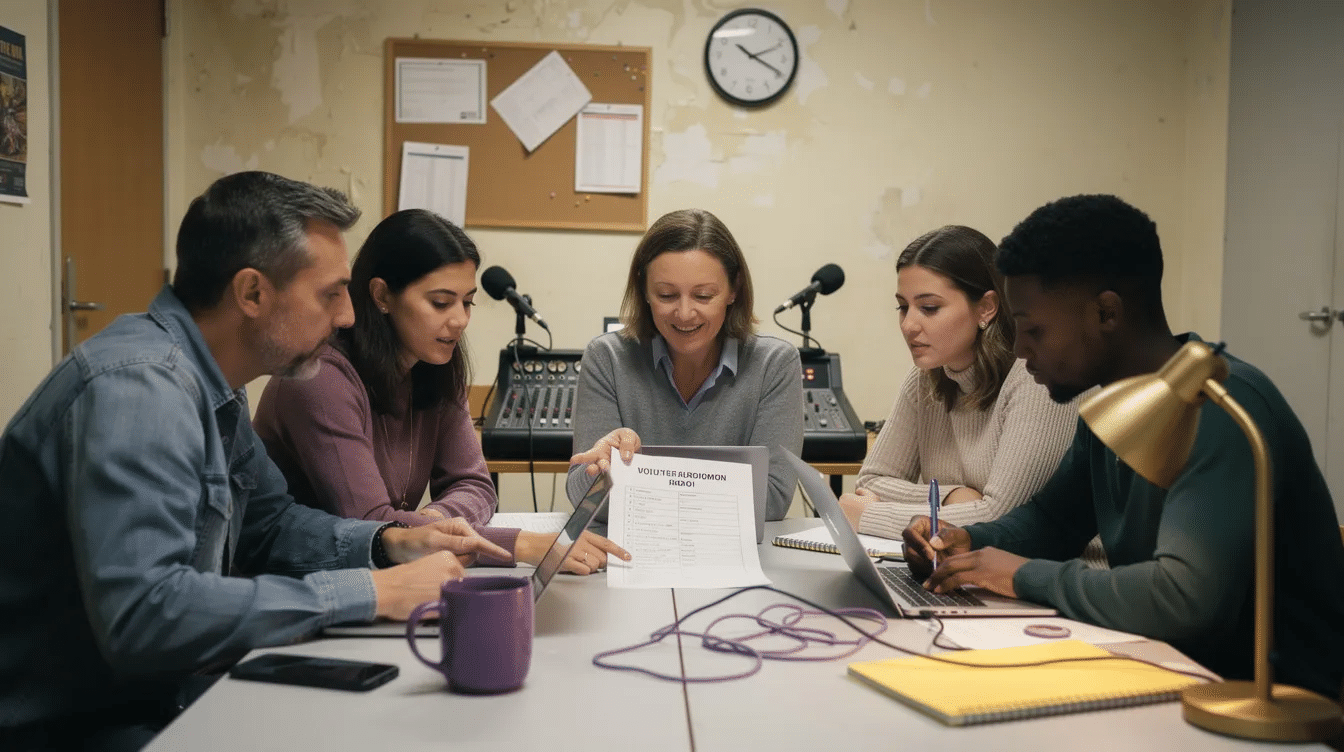
Clear roles and shared preparation matter even more when you co-host a radio show remotely because you cannot rely on eye contact in the same room. Shared live documents help co-hosts track segments, cues, and ad breaks in real time.
Typical roles to assign:
- Lead host – drives the clock and transitions
- Co-host – reacts, adds stories and jokes, keeps the energy up
- Technical captain at home base – watches levels, timing, and the network connection
- Producer or note-taker – even if one host multitasks this role
Build your rundown together using a shared document with time blocks, song slots, talk breaks, and any live broadcast segments or pre-produced items. Create a shared library of jingles and radio imaging so the home base can fire consistent sounds, stings, and IDs that make the show feel unified.
Hold a short pre-show huddle (ten to fifteen minutes) online to confirm who starts the show, who reads the station ID, and who leads each topic. When planning to interview guests, decide in advance who will lead the conversation and who will mainly react. Keep simple shared notes visible for live corrections, time checks, and last-minute changes so everyone can see “wrap by 12:28” or “skip track 4” without saying it on air.
FAQ
Here are quick answers to the most common beginner questions about remote co-hosting.
Can we co-host a radio show remotely using just our laptops and headsets? Yes. A laptop, closed-back headphones, and a basic USB microphone or audio interface are enough to start. Better gear helps, but good mic technique and a quiet room matter more than expensive equipment. The setup is affordable and accessible for most volunteers.
How many co-hosts can join the same remote show? Two or three is the practical sweet spot. The more hosts on the line, the harder timing and turn-taking become. Remember that only one location connects as the live encoder source to your stream – additional voices feed into that home base mix.
Do we need professional studio software to sound good? No. Free or low-cost encoders and simple playout tools provide strong results as long as you use good mic technique, a stable connection, and follow the latency and turn-taking tips from this guide. Focus on rehearsal and preparation rather than chasing expensive software.
Start Your First Remote Co-Hosted Show
Choose your connection model, set up one home base or clear handovers, practice your timing and cues, and agree on backup plans. That is the core of making remote co-hosting work. It is completely normal to feel nervous the first time – do at least one full rehearsal recording before going live so you can fix levels and talking-over issues before your audience hears them.
When you are ready, go live on Zeno.FM with your co-hosts. You can use AutoDJ between shows and connect your encoder using the credentials in your Zeno.FM account. Bring your voices together from different places, build something your listeners can trust, and sound like one united station community on air.
October 13, 2026