How to Take Live Calls on Internet Radio (Without Echo or Feedback)
Yes, you can take live calls on internet radio – including shows streaming on Zeno.FM – using a smartphone, a mixer or software routing, and a few good hosting habits. There is no special phone integration required on the streaming side. The caller is simply another audio source that you mix locally before your encoder sends the combined signal to your listeners.
This guide assumes you already know how to start an online radio station and now want to add call‑in segments. We will cover the basic signal chain, three setup methods (from cheapest to easiest), what mix‑minus means, how to avoid echo and feedback, and on‑air techniques for running smooth conversations. The focus is on live audio streaming – not video or call‑center tech – using everyday devices like smartphones, small mixers, and free software.
Why Live Calls Make Your Radio Show Better
Live calls make a show feel alive. Listeners can start listening, hear real people reacting in real time, ask questions, and influence the direction of a segment. That immediacy is hard to replicate with pre‑recorded content. Web radio offers access to over 60,000 stations worldwide, so giving your audience a reason to choose yours matters – and caller voices add variety between songs and talk breaks that help you grow your online radio station.
Compare this with voice tracking, where pre‑recorded links sound polished but can’t respond to what is happening right now. Live calls bring spontaneity and a human connection that recorded segments cannot match.
Call‑ins are especially powerful for community and nonprofit stations, churches, and local shows that want direct feedback from their audience on events, sermons, or community issues. Common formats include song requests, prayer or testimony lines, Q&A with a guest, contests, and quick check‑in calls from listeners in different cities or countries.
How Live Calls Fit Into Your Streaming Setup
Think of the caller as a second microphone. Their voice must be mixed with the host mic before reaching the stream. The signal chain looks like this:
Host microphone + caller audio (phone or app) → mixer or audio interface → computer with encoder (BUTT, Mixxx, or another Icecast‑compatible tool) → Zeno.FM stream
Internet radio requires an internet connection for streaming, and your listeners on the website or app simply hear the final mix. They don’t need any special phone feature because the studio handles everything locally. Unlike HD Radio, which transmits digital signals instead of traditional radio waves, internet radio relies entirely on your upload bandwidth and streaming server. Keep in mind that streaming servers limit simultaneous listeners for internet radio, so your broadcast quality matters more than raw listener count.
Broadcast delay is usually 7 to 10 seconds for live shows. That gap means callers should talk naturally and avoid trying to listen to the stream while speaking. Zeno.FM receives one combined audio feed and does not provide a built‑in call‑in phone feature – the host manages calls with their own gear or software.
What You Need Before Your First Call
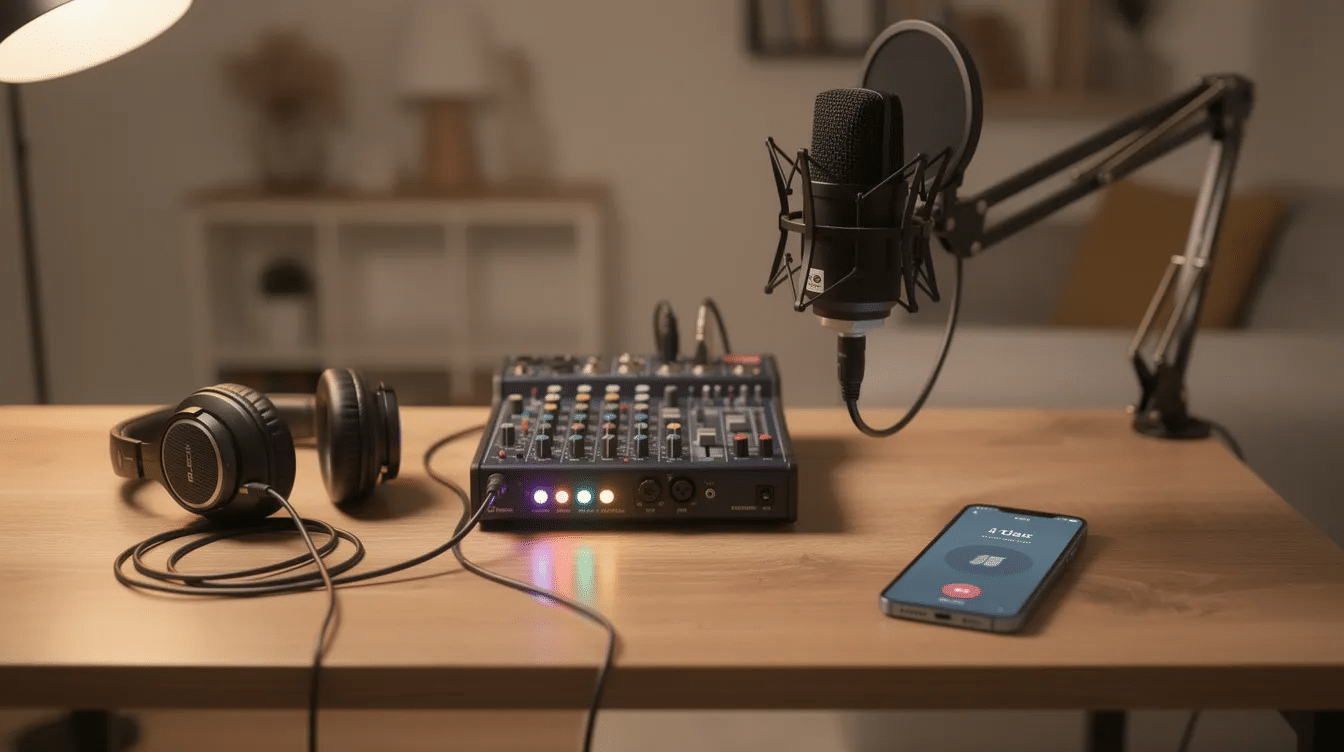
The goal is clean, stable audio so calls sound like part of the show, not a noisy interruption. Technical preparation includes managing audio levels and establishing queues before you go live. Here is the core checklist:
- An XLR microphone and closed-back headphones, which are standard for internet radio
- A simple analog mixer or USB audio interface
- Reliable internet with stable upload speed
- A computer running your playout or DJ software plus an encoder
- A backup contact method in case the main connection fails (a second phone number, a messaging app, or an alternative calling platform)
Better microphones, headphones and other broadcasting gear will make both your voice and your callers sound clearer. For the encoder side, check this guide on encoders for live radio broadcasting and choose one before adding live calls.
You will bring callers into this setup using one of three methods: a physical phone‑to‑mixer connection, virtual audio routing on a computer, or a podcast‑style mixer with built‑in phone channels.
Understanding Mix‑Minus and How to Avoid Echo
Mix‑minus – sometimes called “clean feed” or “N‑1” – means the caller hears the full program mix minus their own voice. Mix‑minus prevents callers from hearing their own voice echo, and a mix‑minus feed allows smooth integration of caller audio into the broadcast. An audio mixer with mix‑minus capability is crucial for live calls.
Without it, callers hear themselves after a delay, start talking over themselves, and conversations become confusing. Routing audio for live calls prevents feedback loops, but only if the return path to the caller excludes their own signal.
On an analog mixer, you build mix‑minus using an aux send or bus: route the host mic, music, and other sources to that output, but turn the caller channel down on that aux so their voice does not return to them. Many podcast‑style mixers handle this automatically on phone or Bluetooth channels, meaning beginners don’t have to wire it manually.
One common shortcut to avoid: holding a phone on speaker up to a studio microphone. This almost always causes room echo and sometimes screeching feedback. Callers should also turn down computer speakers to avoid feedback on their end. Treat it as an emergency backup at best.
Method 1: Connect Your Phone to a Mixer
This is the simplest setup for a DJ radio show on a budget. You use your smartphone as the phone line and a small mixer to control levels.
Hardware needed: A TRRS‑to‑dual‑1/4″ (or TRRS‑to‑dual‑RCA) breakout cable, plus a Lightning‑to‑3.5 mm or USB‑C‑to‑3.5 mm adapter if your phone lacks a headphone jack.
Steps:
- Connect the phone’s headphone output side of the breakout cable into a stereo channel on your mixer.
- Create a return feed from the mixer’s aux send (or tape out) back into the phone’s mic input via the breakout cable.
- On the mixer, send host mic and music to the aux bus but turn the caller’s channel to zero on that aux – this is your mix‑minus.
- Set the phone to a normal call (not speakerphone). The host monitors on closed‑back headphones only – no studio speakers during the call. Closed‑back headphones prevent microphone feedback during calls.
- Start the caller channel fader low, ask the caller to count to five, and raise until their voice matches your loudness without red clipping lights on the meter.
Do a private test call with a friend before going live. Record locally and check EQ, gain, and mix‑minus accuracy.
Method 2: Use Virtual Audio Routing on Your Computer
If you don’t have a hardware mixer, you can route calls entirely in software. Free tools like Voicemeeter or VB‑Audio Cable act as virtual audio cables that move sound between programs inside the computer. Web‑based guest links allow high audio fidelity while bypassing phone compression, making this method appealing for remote interviews over calling apps like WhatsApp or other VoIP clients.
Steps:
- Install a virtual audio cable (e.g., VB‑Audio Cable) on your computer.
- In your calling app, set the audio output to the virtual cable.
- In your encoder or broadcasting software, select inputs from both your microphone and the virtual cable so both host and caller reach the stream.
- Route a separate mix back to the calling app using a second virtual output or Voicemeeter bus – include everything except the caller’s own audio (mix‑minus).
- Mute system sounds, browser notifications, and any music player not part of the show.
- Monitor CPU load. Audio glitches from an overloaded computer affect both the stream and the caller.
This approach is flexible and cheap but slightly more technical. Beginners should search for step‑by‑step screenshots specific to their virtual mixing tool before going live.
Method 3: Podcast‑Style Mixers with Built‑In Phone Channels
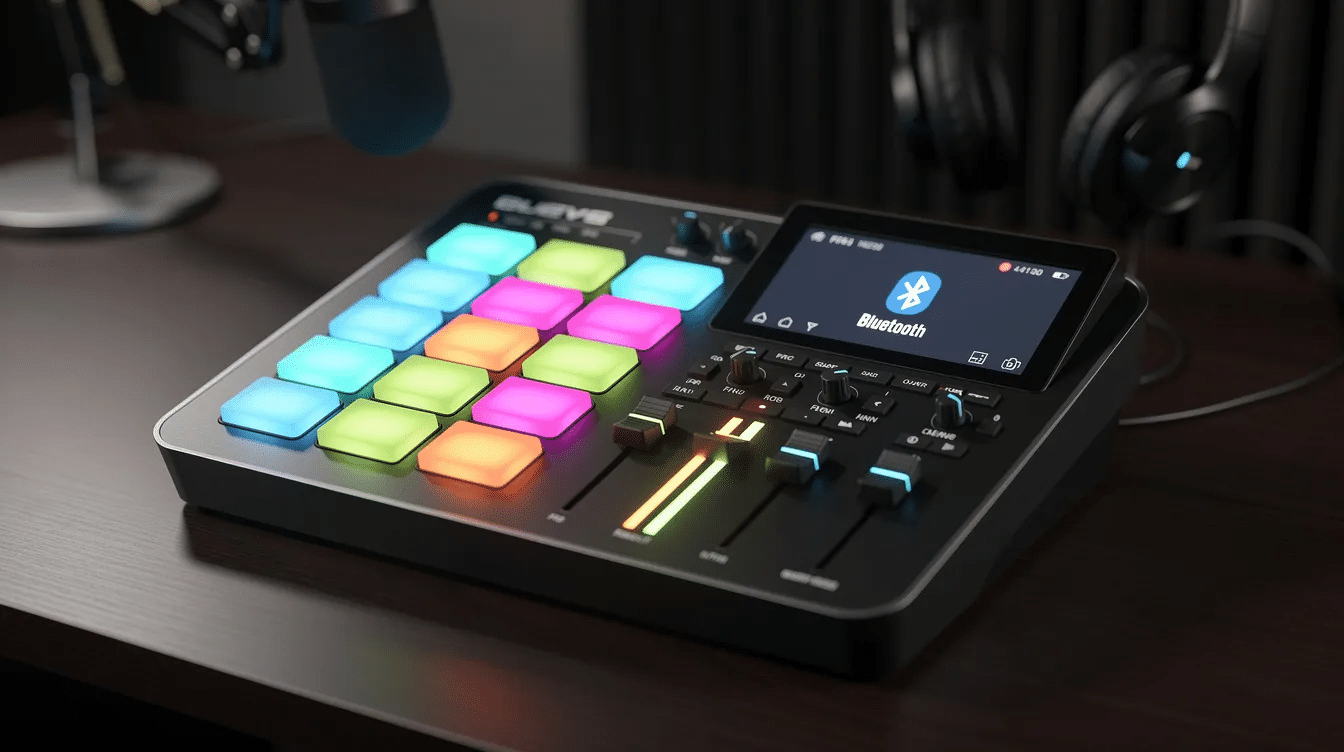
For hosts who run frequent call‑in shows and want the easiest path, podcast mixers from brands like RØDE, Zoom, Tascam, or Yamaha provide dedicated phone, USB, or Bluetooth channels with automatic mix‑minus.
With these devices, you typically pair your smartphone over Bluetooth or plug it into a dedicated TRRS jack, then raise the fader when you want the caller on air. The mixer automatically sends a mix‑minus feed, so the caller hears everything except their own voice – no manual aux routing required. Some models, like the RØDECaster Pro II, also record each channel separately for post‑production editing.
For studios with heavier call volume, the next step up is digital hybrids, which convert telephone audio for broadcast use, or SIP lines that manage multiple phone connections with advanced call queuing.
This method is ideal for regular talk shows, church hotlines, or panel discussions where you want to minimize troubleshooting during a live broadcast.
How to Run a Smooth Call‑In Segment
Technical setup is only half the work. The rest is how you invite, screen, and guide callers on air.
Planning and scheduling. Place call‑in slots in a fixed part of your weekly 24/7 radio programming schedule so listeners know when to call. Audience engagement is enhanced by setting clear discussion topics before opening the lines. Have pre‑recorded audio ready to fill gaps and avoid awkward silence – recording segments in advance helps maintain broadcast energy and flow.
Dedicated number. Use a separate phone number or SIM card for the station instead of the host’s personal line. This protects privacy and keeps call history organized.
Call workflow. Announce the topic and number, then have a co‑host or producer screen calls off‑air. Caller screening can involve checking audio quality and appropriateness before anyone goes live. Caller expectations should be set clearly to facilitate concise communication – tell them the topic, the time limit, and that they will be recorded. Clear cues are necessary between hosts and board operators so everyone knows when a caller is about to go live.
On‑air etiquette. Always tell callers when they are live on air. Hosts should greet callers by name and direct the conversation. Using headphones can significantly improve sound quality for callers, so ask them to use a wired earpiece or headset rather than speakerphone. Call listening enables supervisors or producers to monitor live calls discreetly before putting them on the broadcast.
Specialized services. Utilizing specialized services can simplify call management for broadcasters. Call in Studio, for example, connects via a web browser for call management and allows managing calls via a web interface. Call in Studio has been operational since 2011 and supports video and audio call management. It connects to Zoom and Microsoft Teams for flexibility, and charges 3¢ per minute for calls – a low‑cost option for stations that need structured call queuing.
Ending calls gracefully. Summarize the caller’s point, thank them, and clearly say you are moving to the next song, caller, or break before hanging up.
Turn Your Best Calls into Extra Content
Strong calls can become highlights, promos, or part of a replay show so listeners can listen again later. Many mixers and podcast recorders capture the full stereo mix or individual channels, and the same feed sent to Zeno.FM can also be recorded on the host’s computer.
Legal note: Rules on recording and broadcasting phone calls vary by country and region. Always inform callers that calls may be recorded and aired, and follow local requirements.
Save call clips with clear file names, trim silence and background noise, and re‑use the best moments as intros, teasers, or short segments in future shows. If your station also releases shows as podcasts or on‑demand audio, recorded calls can be slotted into episodes with basic editing or podcast automation tools.
Ready to Take Your First Live Call?
Live calls are possible with basic gear, a clear mix‑minus path, and good hosting habits that keep conversations focused and respectful. Run a short private test session with a friend before opening the lines, adjusting levels until both sides sound natural and connected.
Then open your encoder, go live on Zeno.FM, share the call‑in number, and start listening to your community in real time on your next show. Every caller is part of the team that shapes your station’s sound – and that direct feedback from real listeners is what makes live internet radio worth making.
September 22, 2026