22 August 2026
Dynamics 365 Accounts Payable - Simply Explained
M365.FM - Modern work, security, and productivity with Microsoft 365
About
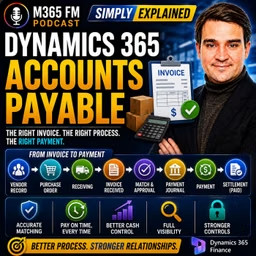
A supplier invoice arrives. The goods may already be sitting in your warehouse or the service may already be complete—but what actually needs to happen before money leaves the company? Dynamics 365 Accounts Payable connects vendor records, invoices, purchase orders, receiving, invoice matching, approvals, payment runs, bank accounts, and settlement into one controlled financial process. In this episode of M365 FM, Mirko Peters explains how Dynamics 365 Finance manages the complete journey from receiving a vendor bill to recording the final payment.
WHAT IS DYNAMICS 365 ACCOUNTS PAYABLE?
Accounts Payable tracks money your company owes vendors for goods and services it has already purchased. Think of it as the payment office inside a large company. Bills arrive, somebody verifies them, the appropriate people approve them, finance determines when they should be paid, and finally the payment is sent to the supplier. Dynamics 365 keeps these individual activities connected so finance can follow the complete history of each vendor invoice.
WHY ACCOUNTS PAYABLE MATTERS
Most businesses don't pay suppliers immediately when they place an order. A supplier delivers goods or completes a service and then sends an invoice. The company now owes that amount, but the money hasn't left the bank account yet. That unpaid amount becomes a liability. A business can therefore have significant cash in its bank account while simultaneously owing substantial amounts to suppliers. Accounts Payable gives finance visibility into both what has already been paid and what will need to be paid in the future.
ACCOUNTS PAYABLE VS ACCOUNTS RECEIVABLE
The names sound similar, but they represent opposite sides of company cash flow. Accounts Payable = Money your company owes vendors. Accounts Receivable = Money customers owe your company. If your company buys printers from a supplier, the supplier invoice belongs in Accounts Payable. If your company sells desks to a customer and sends them an invoice, that customer invoice belongs in Accounts Receivable. One tracks money leaving the business. The other tracks money expected to enter it.
THE GOAL OF ACCOUNTS PAYABLE
The objective is straightforward: Pay the right vendor, the right amount, on the agreed date. Paying too early reduces available cash sooner than necessary. Paying too late can create supplier problems, reminders, disputes, or less favorable payment terms. Paying the wrong amount creates additional administrative work. Dynamics 365 provides the records and controls finance teams need to manage these decisions consistently.
THE VENDOR RECORD
Before Dynamics 365 can process an invoice, it needs to know who should receive the money. The vendor record acts as the supplier's file inside Dynamics 365. It can contain the vendor's name, address, contact information, currency, payment terms, payment method, and other financial settings. These settings don't simply describe the supplier. They influence what happens later when invoices and payments are processed.
PAYMENT TERMS
Payment terms determine when an invoice becomes due. One supplier might require payment within 14 days. Another might allow 30 days. Some vendors may offer discounts for early payment. Dynamics 365 uses the configured payment terms to calculate invoice due dates. That means employees processing invoices for the same vendor don't need to remember individual agreements or search old emails to determine when payment is required.
PAYMENT METHODS
Payment terms answer when the supplier should be paid. Payment methods answer how the money should reach them. Depending on the organization's processes, vendor payments can use methods such as electronic payments, cheques, or promissory notes. Dynamics 365 allows organizations to configure payment methods according to the financial processes they actually use.
VENDOR GROUPS
Large organizations can have hundreds or thousands of vendors. Creating every financial setting independently for every supplier would create unnecessary work and increase the risk of inconsistent configuration. Vendor groups allow organizations to group suppliers sharing common finance rules. The individual vendor still maintains its own identity and transaction history, while the group provides a common starting point for shared financial configuration.
VENDOR POSTING PROFILES
Posting profiles tell Dynamics 365 where vendor transactions belong in the General Ledger. When an invoice is posted, Dynamics 365 needs to record what the organization owes while also connecting the transaction with the appropriate financial accounts. The posting profile provides the accounting map behind this process. Finance employees therefore don't need to manually determine the relevant vendor ledger account every time they process an invoice.
HOW VENDOR INVOICES ENTER DYNAMICS 365
Invoices can enter the Accounts Payable process in several ways. A finance employee can manually enter information from an invoice received through email, paper, or another channel. The invoice record can contain the vendor, invoice number, invoice date, currency, amounts, lines, tax information, purchase order references, and supporting documents. For higher invoice volumes, invoice information can also enter electronically through data entities and connected invoice-processing solutions.
INVOICE NUMBERS AND DUPLICATE DETECTION
The vendor's invoice number is particularly important. Suppose Northwind Office Supplies sends invoice NWO148. If the same invoice enters the system again, Dynamics 365 can use the combination of vendor and invoice number to identify a potential duplicate. This matters because suppliers sometimes resend invoices when they aren't sure the first copy arrived. Employees can also accidentally process the same document twice. Duplicate detection helps prevent the same bill from being paid twice.
INVOICE ATTACHMENTS
Supporting documents can remain connected with the transaction. A PDF invoice, scanned document, or other supporting paperwork can be attached to the invoice record. The finance employee reviewing the transaction can therefore compare the information entered into Dynamics 365 with the original document without searching through shared mailboxes or filing cabinets. This also creates a clearer record when somebody needs to review the transaction later.
AUTOMATED INVOICE IMPORT
Organizations processing large numbers of invoices don't necessarily need employees to manually type every invoice. External invoice capture systems can send invoice information into Dynamics 365 using data entities. The invoice header contains information such as the vendor, invoice number, dates, currency, total amount, and purchase order reference. Invoice lines explain exactly what the supplier is charging for. Supporting documents can travel alongside the structured invoice information.
VENDOR INVOICE POLICIES
Before an invoice proceeds, Dynamics 365 can check whether it follows the organization's configured rules. Missing vendors, invalid dates, duplicate invoice numbers, incorrect totals, or imported data problems can prevent an invoice from proceeding normally. The objective isn't to automate every decision. Automation handles routine checks while finance employees investigate exceptions requiring human judgment.
INVOICE APPROVAL WORKFLOWS
Workflow determines who needs to approve an invoice. Instead of emailing a PDF to a manager and waiting for somebody to respond, Dynamics 365 can route the invoice according to predefined organizational rules. A small invoice might require a simple approval. A large invoice might require a senior manager. An invoice associated with a particular department can be routed toward the manager responsible for that department. The approval route follows configured rules instead of relying on somebody remembering who should receive the invoice.
AUTOMATION AND EXCEPTIONS
Invoices that satisfy established rules can move through routine parts of the process more efficiently. Invoices containing problems become exceptions. Perhaps the vendor is missing, an invoice number already exists, or imported information contains an error. Finance employees can investigate those exceptions rather than spending the same amount of time manually checking every invoice. The system handles repetition. People handle situations requiring judgment.
INVOICE MATCHING
Approval answers: Has the appropriate person approved this invoice? Invoice matching answers another question: Does the supplier's invoice agree with what the company actually ordered and received? When a purchase originates from a purchase order, Dynamics 365 already has information describing the agreed vendor, products, quantities, prices, and terms. That gives finance something concrete against which the vendor invoice can be checked.
PURCHASE ORDERS
A purchase order records what the organization agreed to purchase before the invoice arrives. Suppose the company orders ten office chairs at an agreed price. The purchase order establishes that agreement. When the supplier invoice eventually arrives, finance can compare the bill against the original purchase order instead of reviewing the invoice without any purchasing context.
PRODUCT RECEIPTS
For physical goods, another important record exists: the product receipt. When goods arrive, warehouse employees record what was actually received. If ten chairs were ordered but only eight arrive because two are backordered, the product receipt can record those eight units. Dynamics 365 now has three important pieces of information: What was ordered. What actually arrived. What the supplier wants the company to pay.
Become a supporter of this podcast: https://www.spreaker.com/podcast/m365-fm-modern-work-security-and-productivity-with-microsoft-365--6704921/support.
WHAT IS DYNAMICS 365 ACCOUNTS PAYABLE?
Accounts Payable tracks money your company owes vendors for goods and services it has already purchased. Think of it as the payment office inside a large company. Bills arrive, somebody verifies them, the appropriate people approve them, finance determines when they should be paid, and finally the payment is sent to the supplier. Dynamics 365 keeps these individual activities connected so finance can follow the complete history of each vendor invoice.
WHY ACCOUNTS PAYABLE MATTERS
Most businesses don't pay suppliers immediately when they place an order. A supplier delivers goods or completes a service and then sends an invoice. The company now owes that amount, but the money hasn't left the bank account yet. That unpaid amount becomes a liability. A business can therefore have significant cash in its bank account while simultaneously owing substantial amounts to suppliers. Accounts Payable gives finance visibility into both what has already been paid and what will need to be paid in the future.
ACCOUNTS PAYABLE VS ACCOUNTS RECEIVABLE
The names sound similar, but they represent opposite sides of company cash flow. Accounts Payable = Money your company owes vendors. Accounts Receivable = Money customers owe your company. If your company buys printers from a supplier, the supplier invoice belongs in Accounts Payable. If your company sells desks to a customer and sends them an invoice, that customer invoice belongs in Accounts Receivable. One tracks money leaving the business. The other tracks money expected to enter it.
THE GOAL OF ACCOUNTS PAYABLE
The objective is straightforward: Pay the right vendor, the right amount, on the agreed date. Paying too early reduces available cash sooner than necessary. Paying too late can create supplier problems, reminders, disputes, or less favorable payment terms. Paying the wrong amount creates additional administrative work. Dynamics 365 provides the records and controls finance teams need to manage these decisions consistently.
THE VENDOR RECORD
Before Dynamics 365 can process an invoice, it needs to know who should receive the money. The vendor record acts as the supplier's file inside Dynamics 365. It can contain the vendor's name, address, contact information, currency, payment terms, payment method, and other financial settings. These settings don't simply describe the supplier. They influence what happens later when invoices and payments are processed.
PAYMENT TERMS
Payment terms determine when an invoice becomes due. One supplier might require payment within 14 days. Another might allow 30 days. Some vendors may offer discounts for early payment. Dynamics 365 uses the configured payment terms to calculate invoice due dates. That means employees processing invoices for the same vendor don't need to remember individual agreements or search old emails to determine when payment is required.
PAYMENT METHODS
Payment terms answer when the supplier should be paid. Payment methods answer how the money should reach them. Depending on the organization's processes, vendor payments can use methods such as electronic payments, cheques, or promissory notes. Dynamics 365 allows organizations to configure payment methods according to the financial processes they actually use.
VENDOR GROUPS
Large organizations can have hundreds or thousands of vendors. Creating every financial setting independently for every supplier would create unnecessary work and increase the risk of inconsistent configuration. Vendor groups allow organizations to group suppliers sharing common finance rules. The individual vendor still maintains its own identity and transaction history, while the group provides a common starting point for shared financial configuration.
VENDOR POSTING PROFILES
Posting profiles tell Dynamics 365 where vendor transactions belong in the General Ledger. When an invoice is posted, Dynamics 365 needs to record what the organization owes while also connecting the transaction with the appropriate financial accounts. The posting profile provides the accounting map behind this process. Finance employees therefore don't need to manually determine the relevant vendor ledger account every time they process an invoice.
HOW VENDOR INVOICES ENTER DYNAMICS 365
Invoices can enter the Accounts Payable process in several ways. A finance employee can manually enter information from an invoice received through email, paper, or another channel. The invoice record can contain the vendor, invoice number, invoice date, currency, amounts, lines, tax information, purchase order references, and supporting documents. For higher invoice volumes, invoice information can also enter electronically through data entities and connected invoice-processing solutions.
INVOICE NUMBERS AND DUPLICATE DETECTION
The vendor's invoice number is particularly important. Suppose Northwind Office Supplies sends invoice NWO148. If the same invoice enters the system again, Dynamics 365 can use the combination of vendor and invoice number to identify a potential duplicate. This matters because suppliers sometimes resend invoices when they aren't sure the first copy arrived. Employees can also accidentally process the same document twice. Duplicate detection helps prevent the same bill from being paid twice.
INVOICE ATTACHMENTS
Supporting documents can remain connected with the transaction. A PDF invoice, scanned document, or other supporting paperwork can be attached to the invoice record. The finance employee reviewing the transaction can therefore compare the information entered into Dynamics 365 with the original document without searching through shared mailboxes or filing cabinets. This also creates a clearer record when somebody needs to review the transaction later.
AUTOMATED INVOICE IMPORT
Organizations processing large numbers of invoices don't necessarily need employees to manually type every invoice. External invoice capture systems can send invoice information into Dynamics 365 using data entities. The invoice header contains information such as the vendor, invoice number, dates, currency, total amount, and purchase order reference. Invoice lines explain exactly what the supplier is charging for. Supporting documents can travel alongside the structured invoice information.
VENDOR INVOICE POLICIES
Before an invoice proceeds, Dynamics 365 can check whether it follows the organization's configured rules. Missing vendors, invalid dates, duplicate invoice numbers, incorrect totals, or imported data problems can prevent an invoice from proceeding normally. The objective isn't to automate every decision. Automation handles routine checks while finance employees investigate exceptions requiring human judgment.
INVOICE APPROVAL WORKFLOWS
Workflow determines who needs to approve an invoice. Instead of emailing a PDF to a manager and waiting for somebody to respond, Dynamics 365 can route the invoice according to predefined organizational rules. A small invoice might require a simple approval. A large invoice might require a senior manager. An invoice associated with a particular department can be routed toward the manager responsible for that department. The approval route follows configured rules instead of relying on somebody remembering who should receive the invoice.
AUTOMATION AND EXCEPTIONS
Invoices that satisfy established rules can move through routine parts of the process more efficiently. Invoices containing problems become exceptions. Perhaps the vendor is missing, an invoice number already exists, or imported information contains an error. Finance employees can investigate those exceptions rather than spending the same amount of time manually checking every invoice. The system handles repetition. People handle situations requiring judgment.
INVOICE MATCHING
Approval answers: Has the appropriate person approved this invoice? Invoice matching answers another question: Does the supplier's invoice agree with what the company actually ordered and received? When a purchase originates from a purchase order, Dynamics 365 already has information describing the agreed vendor, products, quantities, prices, and terms. That gives finance something concrete against which the vendor invoice can be checked.
PURCHASE ORDERS
A purchase order records what the organization agreed to purchase before the invoice arrives. Suppose the company orders ten office chairs at an agreed price. The purchase order establishes that agreement. When the supplier invoice eventually arrives, finance can compare the bill against the original purchase order instead of reviewing the invoice without any purchasing context.
PRODUCT RECEIPTS
For physical goods, another important record exists: the product receipt. When goods arrive, warehouse employees record what was actually received. If ten chairs were ordered but only eight arrive because two are backordered, the product receipt can record those eight units. Dynamics 365 now has three important pieces of information: What was ordered. What actually arrived. What the supplier wants the company to pay.
Become a supporter of this podcast: https://www.spreaker.com/podcast/m365-fm-modern-work-security-and-productivity-with-microsoft-365--6704921/support.